

Personalization
Personalize your AI Agent's conversations using contact attributes, task attributes, system variables, and context from the contact's previous calls.
Personalization is what makes an AI Agent sound like your best rep instead of a script. Your Agent can draw on four sources:
| Source | What it is | How the Agent gets it |
|---|---|---|
| Contact attributes | Data from the contact profile: name, phone, custom properties | You reference it with {{contact.*}} in the prompt |
| Task attributes | Data about this specific call: queue, direction, campaign, SIP headers | You reference it with {{task.*}} in the prompt |
| System variables | Current date and time | You reference it with {{}} in the prompt |
| Previous call context | Summaries of the contact's recent calls | Turn on the toggle in the agent builder |
The first three are dynamic variables, which you insert into your prompt. The fourth is context, which you switch on and then prompt against. Both are covered below.
Contact Attributes
When configuring your agent, you have access to all contact attributes from the contact profile. This includes:
- Standard fields like
contact.firstNameorcontact.contactPhone - Custom properties you've added such as
contact.address.zipCode,contact.customProperties.current_promo, orcontact.customProperties.preferred_language - Regal properties like
contact.rvProperties.last_handling_agentorcontact.rvProperties.area_code
Reference Contact Attributes in Your Prompt
- To insert a variable, type
{{in the prompt editor or click the variables button - A dropdown list of available Contact attributes from the contact profile will appear
- Select the one you want to use (e.g.
{{contact.firstName}}). Regal will then insert the real value from the contact profile
Example Prompt:
"Hi {{contact.firstName}}, I'm following up on your interest in our {{contact.customProperties.service_type}} offer."
If contact.firstName = Jordan and contact.customProperties.service_type = home security, the Agent will say: "Hi Jordan, I'm following up on your interest in our home security offer."
Task Attributes
Task attributes describe the call itself rather than the person on it: where it came from, which queue it hit, and any SIP headers passed in on transfer.
There is no dropdown list for task attributes. Type{{task.attributeName}}directly into the prompt editor. Attribute names are case sensitive and must match exactly.
Below is a selection of the attributes most commonly used in prompts. It is not the full list, and not every attribute is set on every call. Which ones are available depends on how the call reached your Agent.
| Attribute | Description |
|---|---|
{{task.taskId}} | Unique ID for this task |
{{task.originalTaskQueueName}} | The queue the task was originally routed to |
{{task.title}} | The task title as shown in the agent desktop |
{{task.regalVoicePhone}} | The Regal number involved in the call |
{{task.regalVoicePhoneFriendlyName}} | The friendly name configured for that number |
{{task.incomingSipHeaders}} | SIP headers passed in when the call is transferred to Regal via SIP (inbound only) |
To see exactly what is available on your calls: place a test call, open the task slide out, and read the attribute list.
Where to find Task Attributes:
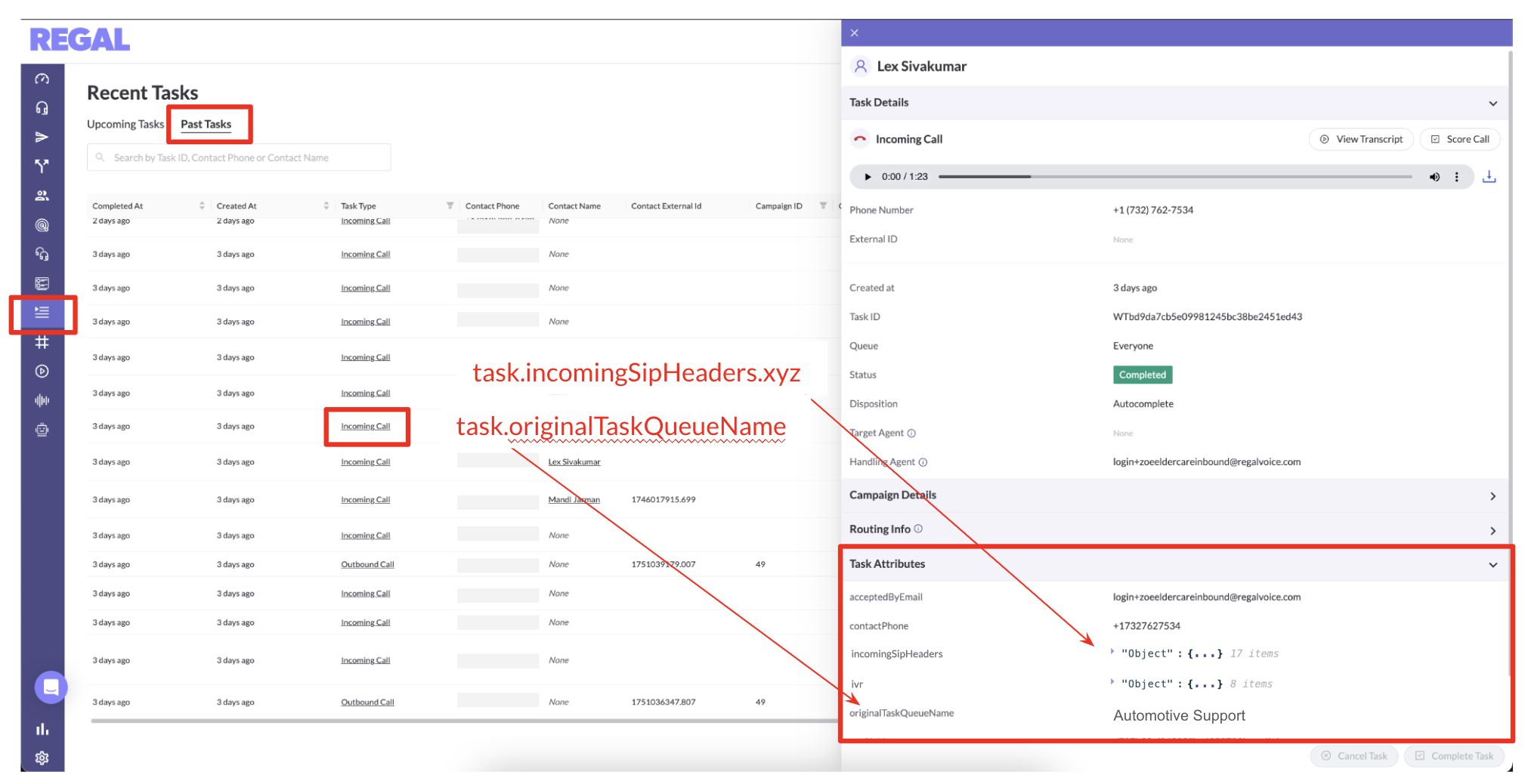
Example Prompt:
Thanks for calling into {{task.regalVoicePhoneName}}. How can I help you today?
An attribute has to exist on the task at the moment the Agent joins the call for the Agent to see it. Attributes written later in the call will not appear in the prompt. If a variable renders empty on a test call, check the slide out to confirm the attribute is set at join time.
System Variables
Two system variables are available in every prompt:
| Variable | Description | Example value |
|---|---|---|
{{current_time}} | Current date and time in UTC | Thursday, August 13, 2026 at 12:29:22 AM UTC |
{{current_time_local}} | Current date and time in the timezone configured on the General Settings page | Wednesday, August 12, 2026 at 08:29:22 PM EDT |
The values above are examples showing the format. Each variable resolves to the actual date and time at the moment of the call. Both examples above are the same instant, which is why the UTC one falls on the next day.
Both resolve to a full written out date and time, not a timestamp. The Agent receives the day of the week, the date, the time to the second, and the timezone, so you do not need a separate variable to get the day of the week.
Both are also added to the Agent's context automatically, so the Agent knows what time it is even if you never reference them. Reference them explicitly when you want the Agent to reason about time out loud, for example checking business hours or confirming an appointment window.
Example Prompt:
Our support team is available 9am to 6pm Eastern, Monday through Friday. The current local time is {{current_time_local}}. If the caller asks for a live person outside those hours, let them know the team is back the next business day and offer to help directly.
Previous Call Context
Your Agent can see summaries of the contact's recent calls, so it can pick up where the last conversation left off instead of starting from scratch.
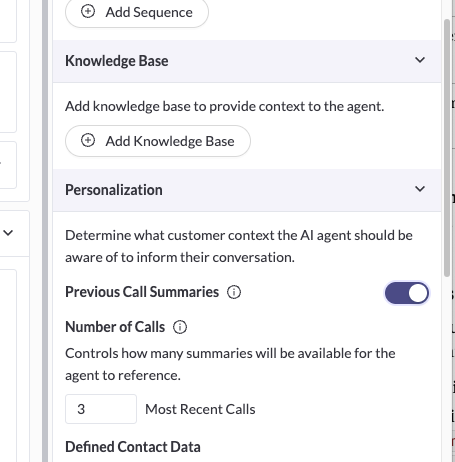
Turning it on
Previous call context is off by default. In the agent builder, turn on the toggle that gives the Agent additional information about the contact's past calls.
Once it's on, the Agent can see up to the contact's ten most recent calls that have a call summary. Summaries cover the past 30 days and include both answered and unanswered calls. A call only has a summary if it was transcribed for more than 30 seconds, so very short calls will not appear.
What the Agent sees
For each previous call, the Agent has four pieces of information:
| Description | |
|---|---|
| Summary | The AI generated summary of what was discussed on that call |
| Date | When the call took place |
| Disposition | How the call was dispositioned, e.g. transferred, no answer, resolved |
| Direction | Whether the call was inbound or outbound |
That is the whole picture. The Agent does not get the full transcript or the recording, only these four fields per call.
How to use it
This is not a dynamic variable. There is no {{ }} to insert, and nothing appears in the variables dropdown. Turning the toggle on is what makes the information available.
What you do next depends on how you want the Agent to behave:
- If you do nothing else, the Agent can still react to the caller. If someone asks "What did we talk about last time?" or "Didn't I already call about this?", the Agent can answer from the summaries.
- If you want the Agent to use the history proactively, you have to reference it in the prompt. The Agent will not bring up a previous call on its own unless you tell it to.
That second point is the one to plan for. If you want the Agent to open by referencing the last conversation, or to change its approach based on how the last call ended, write that instruction into your prompt.
Example: acknowledge the last call in the greeting
GREETING
Check whether this contact has any previous calls in your context.
- If there is at least one previous call, open by briefly referencing the most recent one in one short clause, then ask what they need today. Example: "Hi {{contact.firstName}}, good to hear from you again. Last time we were sorting out your billing date. What can I help with today?"
- If there are no previous calls, use the standard greeting: "Hi {{contact.firstName}}, thanks for calling. How can I help you today?"
Never read a summary back word for word, and never list more than one previous call out loud.
Example: branch on the previous disposition
CONTEXT EVALUATION (do this before speaking)
Look at the disposition of the most recent previous call.
- If the last call was dispositioned as a transfer to a live agent, assume they may be following up on the same issue. Ask: "Are you calling about the same thing we connected you on last time?"
- If the last call was dispositioned as no answer or voicemail, do not mention it. Treat this as a fresh conversation.
- If the last call ended with the issue resolved, do not reopen it. Ask what they need today.
Example: answer questions about past calls without volunteering them
You have summaries of this contact's recent calls. Do not bring them up on your own.
If the caller asks what was discussed previously, give a one sentence summary of the most recent relevant call and include roughly when it happened. Example: "We spoke about a week ago about updating the address on your policy."
If the caller asks about something that does not appear in any previous call, say you don't have a record of it rather than guessing.
TIPPrevious call summaries are written by an AI and can be imperfect or stale. Treat them as a starting point, not a fact you can act on. When a summary drives a decision that matters (a payment, a policy change, a transfer), have the Agent confirm with the caller before acting on it.
Use Dynamic Variables in Conditional Logic
You can reference dynamic variables to instruct the agent to behave differently depending on their values:
- Provide Variable Descriptions. In the Contact Attributes Modal, make sure to provide a short, clear description for each variable. This helps the AI Agent interpret what each value represents in context.
- Reference that variable name in your prompt.
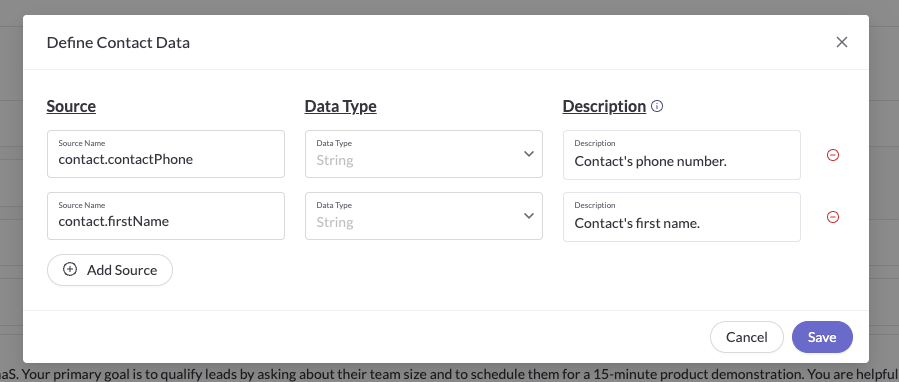
Example Prompt:
Qualification Questions
Before asking any questions, decide if you already have the customer's permission to be called back.
This is the customer's permission setting: {{contact.customProperties.TCPAoptIn}}
- If Permission for callbacks = True, that means they already gave permission so you should skip question 1a and start with 1b. (don't mention that you already have their permission for callbacks)
- If Permission for callbacks = False, that means they have not given permission, so you should get permission by starting with question 1a.
1a. "Do we have your permission to give you a call back in case we get disconnected?"
1b. What type of fence are you interested in?
(e.g. wood, vinyl, chain link, aluminum, wrought iron)
TIP - Handling Missing or Optional ValuesIf a variable might be empty, be sure to instruct the Agent in the prompt on how to behave when the value is missing. Always test your Agent with both complete and incomplete variables to verify it handles missing data gracefully.
Controlling What the Agent Can Reveal
By default, your AI Agent only has access to the dynamic variables you reference in the prompt, plus any previous call context you've enabled. It won't know when or whether it's allowed to share that information unless you tell it.
If you want to allow or prevent the Agent from revealing certain data (name, address, promo code, previous call details) in response to a customer question, you must define that in your prompt.
Examples:
"If the customer asks 'What address do you have on file for me?', do not share the address."
"If the customer asks about the value of their Permission for callbacks setting, you may share it if it has a value."
"If the customer asks what was discussed on a previous call, give a one sentence summary. Do not read the full summary, and do not name the rep who handled it."
Be specific about what's permitted to prevent your Agent from disclosing something it shouldn't, or withholding something it could share.
This matters more with previous call context enabled, because the Agent holds information the caller may not expect it to have. If your brand has a policy about what can be discussed across calls, put it in the prompt.
Summary
Personalization comes from four places: contact attributes, task attributes, system variables, and previous call context. The first three you insert with {{ }}. The fourth you switch on with a toggle, then reference in your prompt if you want the Agent to use it proactively.
Combine clear variable descriptions, fallback logic for missing values, and explicit instructions on what the Agent may reveal to make your Agent smarter, safer, and more human.
▶️ VIDEO TUTORIAL
Updated about 2 months ago