

Copilot Use Cases
Video tutorials and Use Case Good-to-Knows
Build an Agent
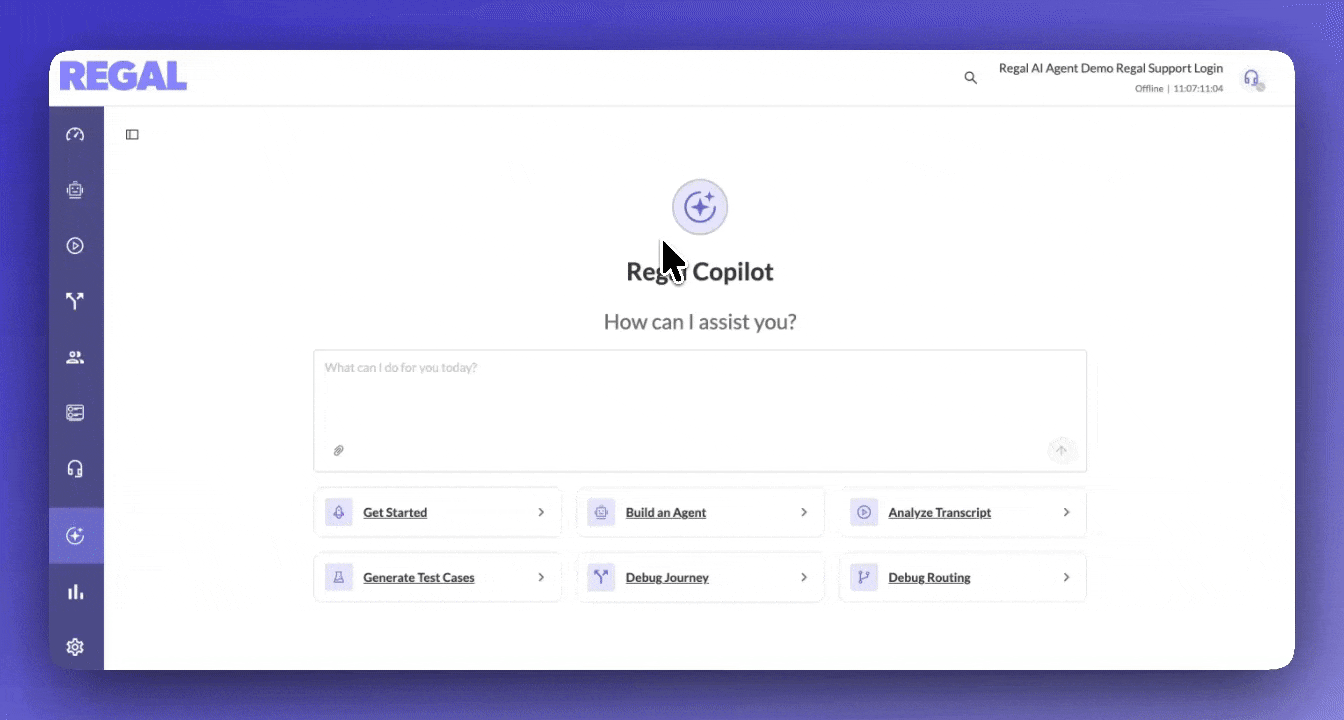
- Upload a workflow document (a lending qualification flow in this example) to Regal Copilot, and it drafts a first version of the agent with a summary of what it built, which you can inspect in the editable canvas.
- Run a test call to check whether the agent takes actions at the right moments, then either edit manually or ask Copilot to fix issues, like moving the set caller intent step later in the conversation, and compare versions to confirm the change.
- Keep repeating the test, review, and revise loop until the agent behaves the way you want, then use test and simulation (covered in a separate tutorial) to validate at scale and catch regressions.
Generate Test Cases & Run Simulations
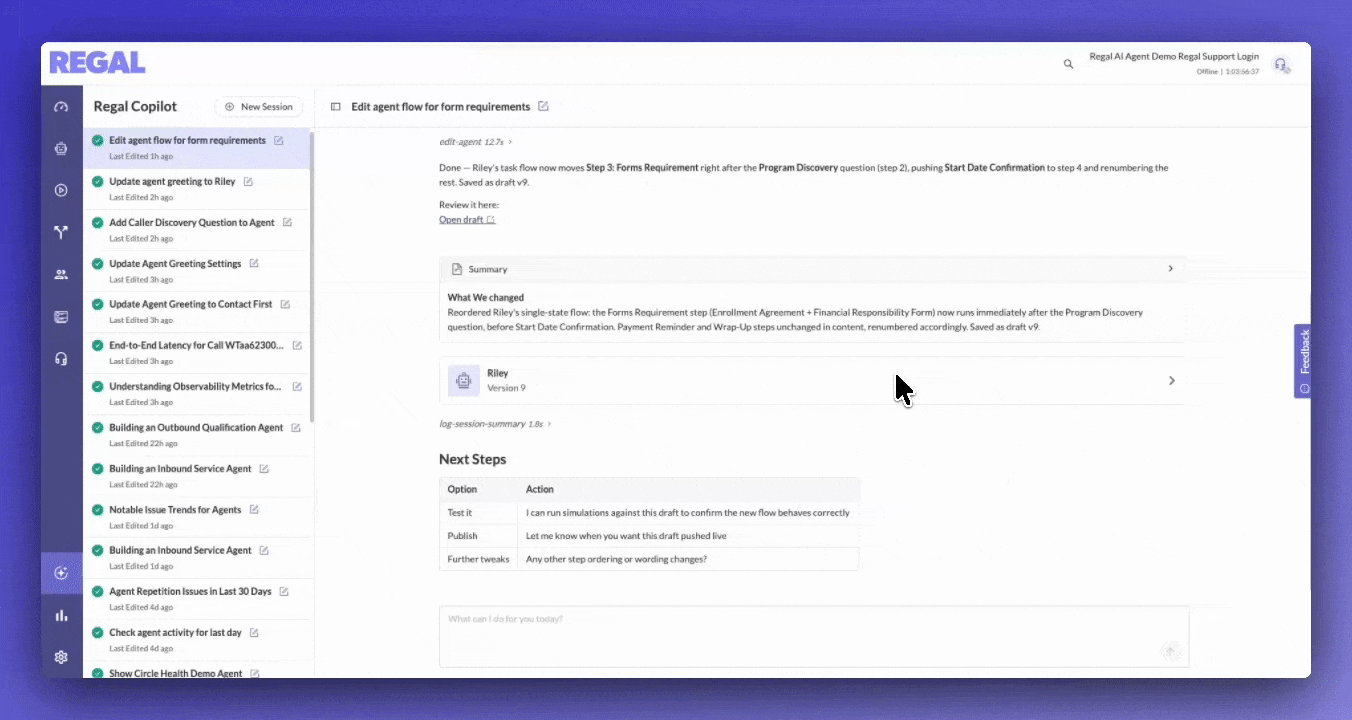
- In the agent's Test Cases tab, ask Copilot to generate end-to-end test cases (like the quote intake assistant in the demo), each one a full realistic call path with success criteria you can review before running anything.
- Run simulations either from the test case tab or by asking Copilot to do it in-session, then check which scenarios passed and which failed. In the demo, existing policy calls and the full quote flow passed, while reaching the wrong person and transferring to a specialist struggled.
- Ask Copilot to analyze the failures and suggest prompt fixes, have it apply them to your draft, and rerun until edge cases hold up, all without manual testing.
Improve Agents from Call Transcripts
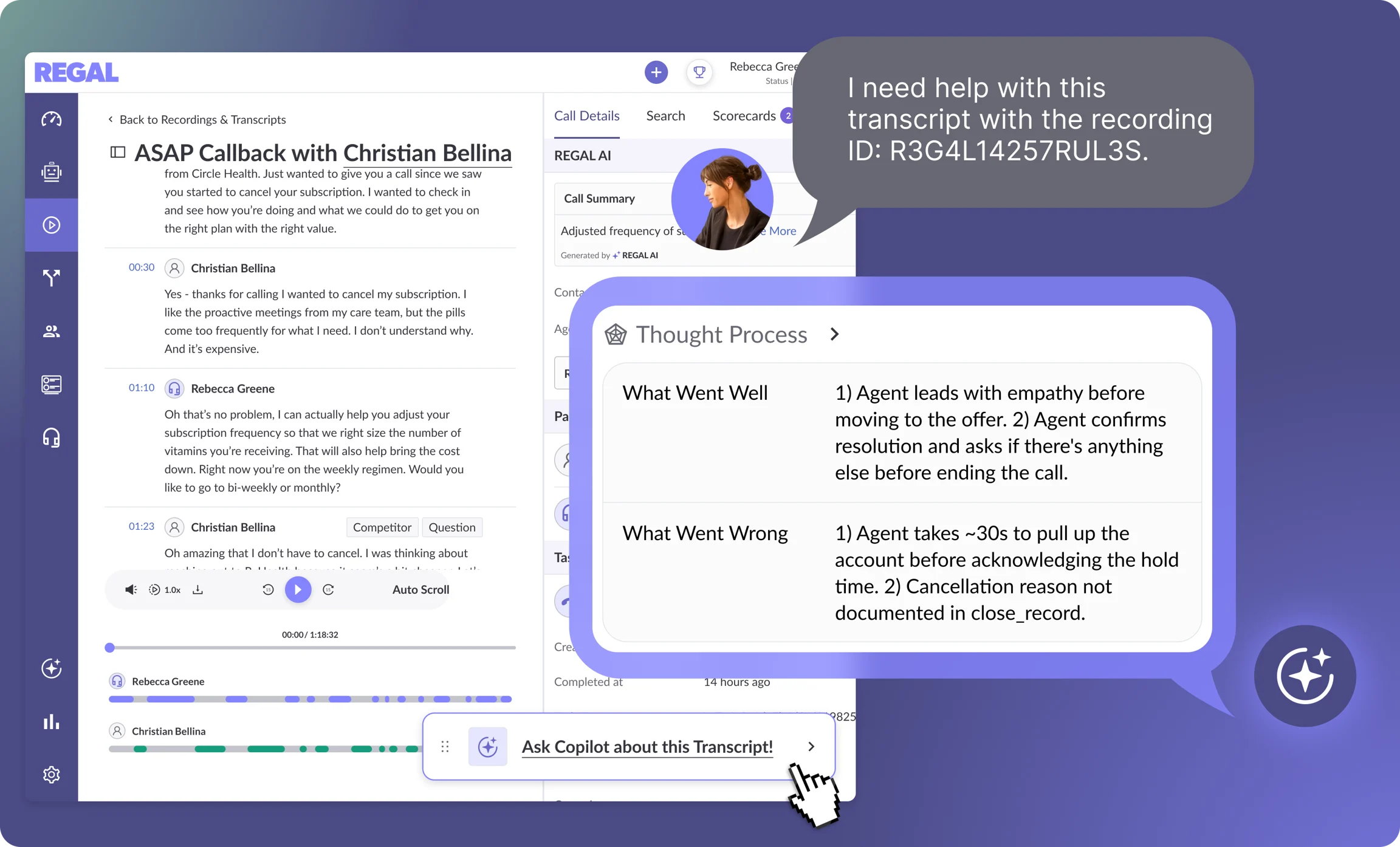
- Open Copilot from the agent and either target one issue in a specific transcript (like reducing repetition, where the agent stopped explaining the monthly cleaning offer twice and now asks a short confirmation question instead) or ask for a broader health check across the last 5 or 10 calls, or the last month.
- For the targeted fix, review Copilot's summary of what changed and open the Canvas UI to inspect the updated logic and test the audio. For the broad review, Copilot surfaces patterns across calls (in the demo, a priority issue with how the agent phrases something to customers) so you can decide what to fix first.
- Ask Copilot to implement the top-priority fix, click apply this edit, then review the change summary and the draft agent and test it before finalizing.
Review Observability Metrics
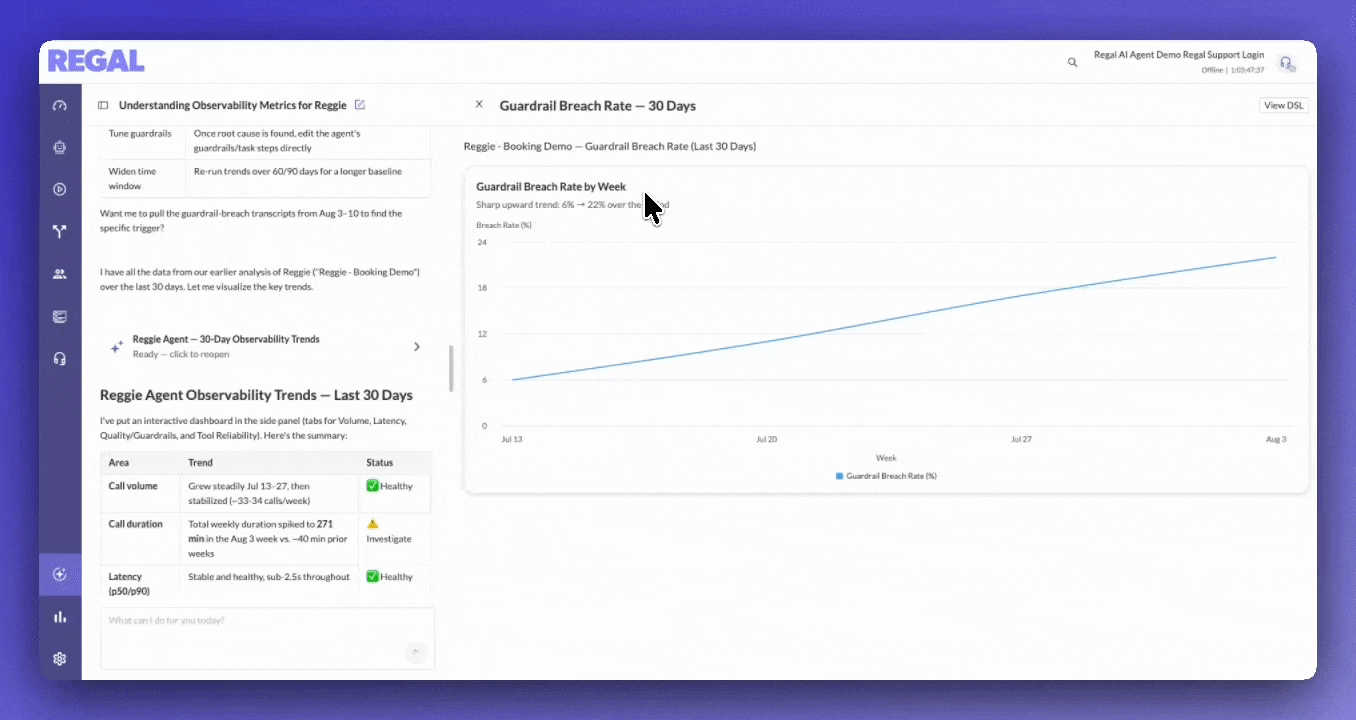
- Open the observability dashboard and ask Copilot for the exact cut you need when it isn't shown, like the last 14 days grouped by agent, and it builds a dynamic view with metrics such as call volume and end-to-end latency by agent. You can keep changing the date range or grouping to narrow in on outliers.
- Treat that overview as a starting point. When something looks off, like latency spikes, contact interruptions, or a high repetition rate under an LLM issue, ask Copilot which calls were affected and it returns a list from a recent window with links to the individual transcripts.
- Open the transcripts to understand the pattern, and ask Copilot to pinpoint where in the call an issue like repetition happens so you can debug faster and decide whether the agent's behavior needs to change.
Use cases and good-to-knows
| Use case | Example asks | Strong when | Good to know |
|---|---|---|---|
| New agent (single flow) | “Build an inbound…”, “Walk me through billing.” | End-to-end draft; uses queues that already exist in your account. | Saved as a draft. Going live is a separate, explicitly confirmed step. |
| New agent (branching / multi-step) | “Triage then schedule”, “Graph with qualification.” | Plans branches before filling in details. | Transfers and actions work differently than in a simple single-flow agent—expect Copilot to follow Regal’s product rules, not copy settings blindly across styles. |
| Improve existing agent | “Review my script”, “Fix the transfer.” | Recommendations tied to your current configuration. | Saves as a draft by default. Knowledge libraries stay managed in the Regal app. |
| Test cases | “Generate 15 tests”, “Import this CSV.” | Mix of happy paths, objections, and edge cases. | Large imports are created in batches of 10. Deletes need a clear yes from you. |
| Simulations | “Run all tests”, “What happened on the last run?” | Clear pass/fail and links back to transcripts. | Long runs may pause—you can ask Copilot to keep checking. If one scenario never finishes, the test wording or end condition may need tightening. |
| Real calls & transcripts | “What happened on this call?”, “Find calls where…” "Where did customers drop off in these AI agent calls?" | One-call diagnosis; OR trends across a bounded set of calls (<100) | For many calls at once, start with a shorter time range or tighter filters—Copilot works in chunks and will ask you to continue or narrow as it goes. Stay within 100 calls for good analysis results - we are actively improving the bulk capabilities here. Stay tuned! Paste recording links directly to Copilot and ask questions. |
| Agent performance metrics | “How are my agents doing this week?”, “Did latency get worse?”, “Which actions are failing?” | Bounded metric questions with a clear timeframe; comparing agents or versions. | Requires metrics to be enabled for your brand. Copilot answers from the metrics catalog—if a measure is not in the catalog, it cannot be queried. |
| Task routing | “Why didn’t [email protected] get this taskID W123?”, “Was this scheduled callback task snoozed?” | Explains routing, eligibility, and recent rule history. Explain "what happened" for a particular task. | Use the same Task id wording Regal shows in the UI to debug. |
| Journeys | “Where are all the conditional nodes with {{contact.age}} filter in this Journey?” "What is the difference between Journey 123 and Journey 345? | Scan across large Journey definitions to find gaps or hard-to-identify issues. | Single Journey questions perform best. For a contact's run through a journey, Copilot can pull the execution history and per-node detail (branches taken, webhook responses, task IDs). |
| IVRs | "Walk me through what IVR 20 does", "Where is {{contactPhone}} referenced?", "What changed between these two IVRs?" | End-to-end flow explanation and node-level detail. | Reference the IVR by friendly ID or name; Copilot resolves it to the full node definition. |
| Contact Profiles | "What is the value for {{contact.product_type}} for this contact last Thursday?" "What were the values for this event on the profile? Should it have triggered Journey 123?" | Find profile attributes at a point in time; find events for a contact | Copilot can load historical profile snapshots by version, not just the current record. |
| Capabilities | “What can you do?” — answer with categories (agents, tests, calls, routing, journeys), not a long internal feature list. |
Updated about 2 hours ago
Did this page help you?