

Regal <> Five9 AI Agent Connect
Seamlessly hand off Regal AI calls to a human agent in Five9 via Five9's AI Agent Connect integration.
Regal is an accredited Five9 AI Agent Connect partner. Regal follows Five9's recommended integration path for AI agent providers. It runs over the same shared Twilio ↔ Five9 SIP trunk used for a standard SIP integration, but replaces the manual SIP transfer/header configuration with a purpose-built handoff flow designed specifically for escalating AI calls to human agents.
How it works
- Your Five9 IVR routes an inbound (or dialer-initiated outbound) call to Regal over your existing Five9 ↔ Twilio SIP trunk, using your dedicated Regal SIP domain and phone number.
- Five9 stays on the call while your Regal AI agent handles the conversation.
- When the call ends or needs to go to a human agent, Regal ends its leg of the call, cutting the cost of an extra call leg.
- Your Five9 IVR detects that Regal has left the call and makes a request to Regal to find out what to do next — end the call, or route it to a specific agent, skill, or queue — along with any data your human agent needs for their screen pop.
With this AI Agent Connect approach, you'll have full call-outcome data for every call back to Five9 - not just the ones that get escalated to a human.
Setting up Five9 AI Agent Connect
Step 1: Confirm your Five9 SIP trunk is configured
If you haven't already set up a standard SIP connection between Regal and Five9, do that first — see CCaaS / SIP Integration. AI Agent Connect reuses that same trunk, FQDN, and phone number; there's no separate trunk to configure.
Step 2: Enable AI Agent Connect for your brand
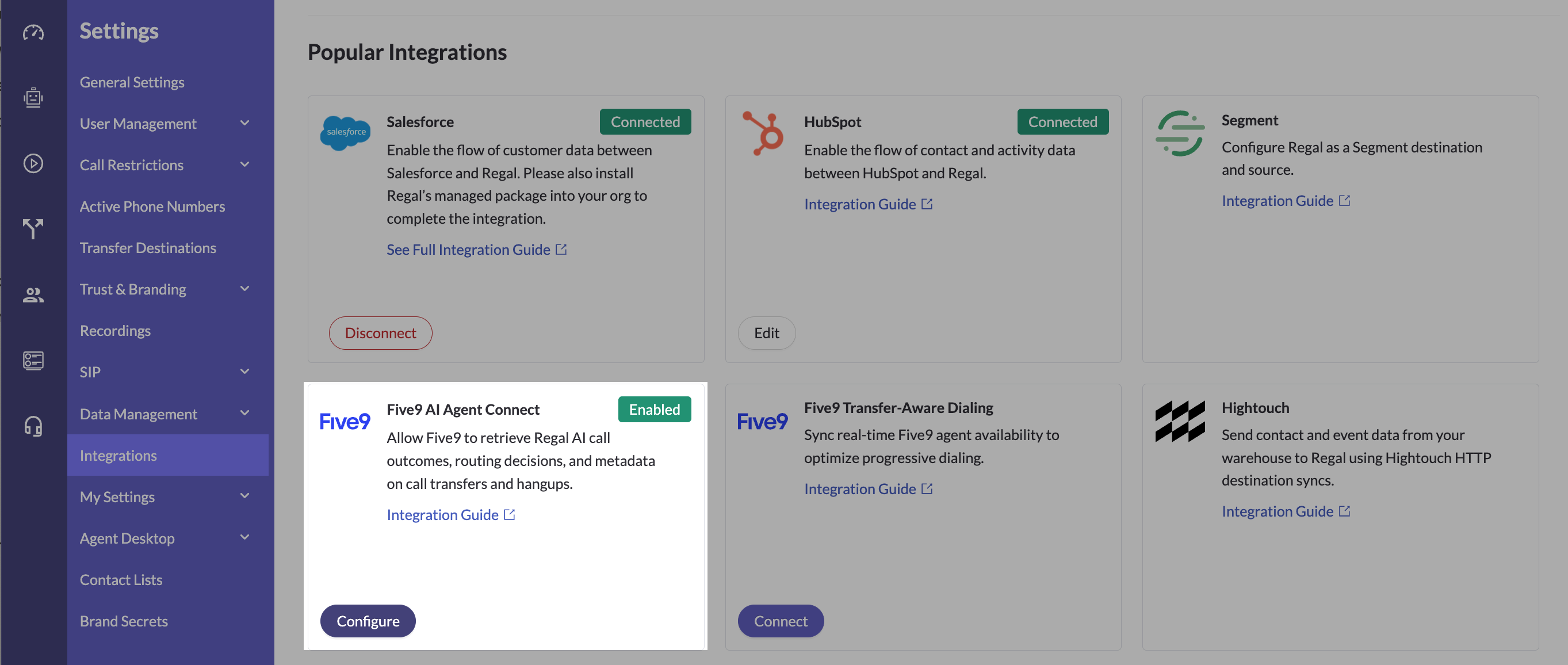
- Enable the Five9 AI Agent Connect integration on your account (Settings → Integrations).
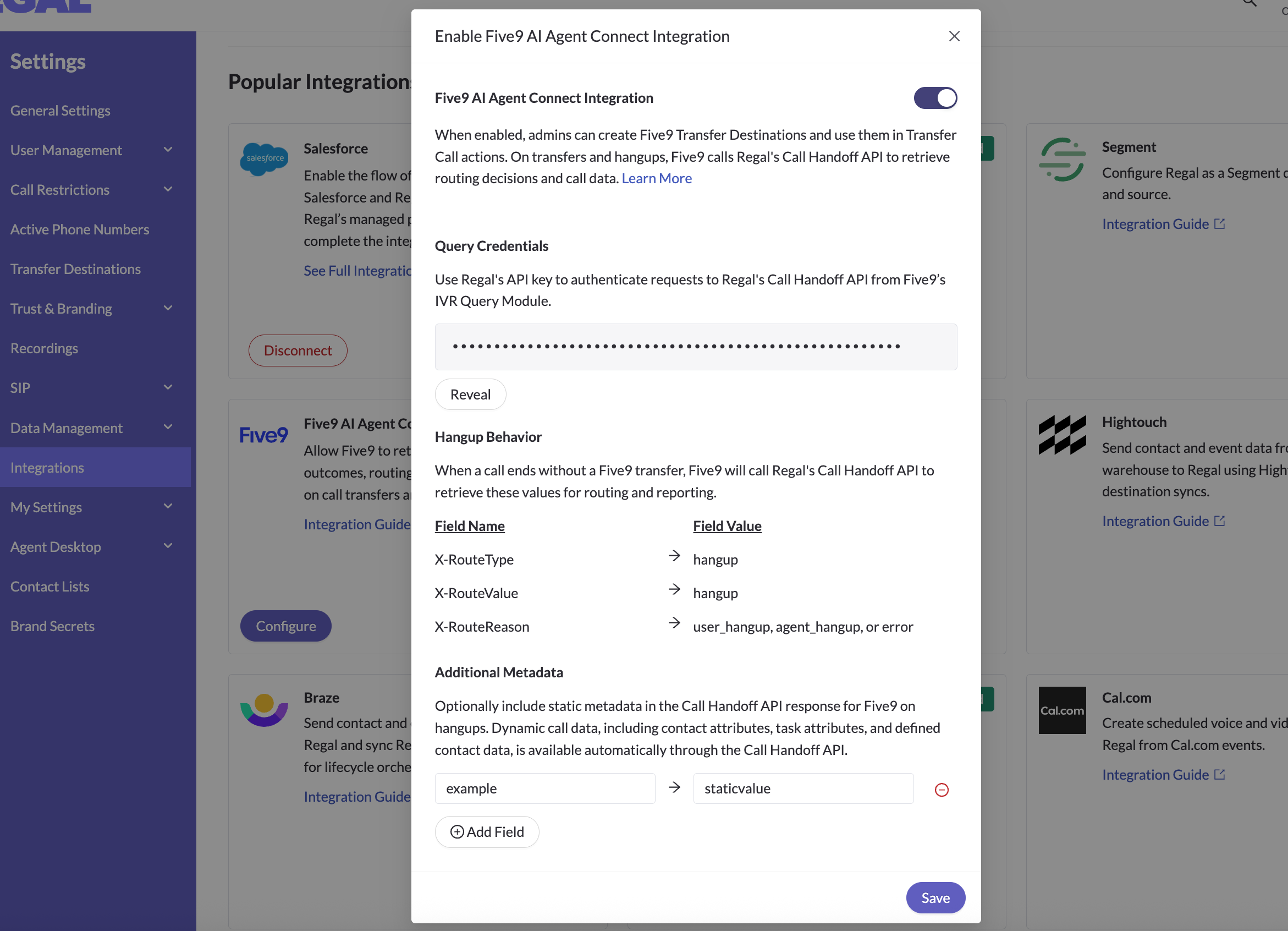
- Under Query Credentials, click Reveal and Copy your Regal API key — this is the same Regal API key used elsewhere in your account. Share it with whoever configures your Five9 IVR's Query module, so Five9 can authenticate its calls to Regal's Call Handoff API.
- Review Hangup Behavior — this shows the fixed values Five9 will get back when a call ends without an active transfer (i.e. no Transfer Destination was used).
- (Optional) Under Additional Metadata, add static key/value pairs to include in every Call Handoff API response for this integration — on both hangups and transfers. Dynamic call data (contact attributes, task attributes, defined contact data) is already included automatically and can't be added here.
Step 3: Create a Five9 AI Agent Connect transfer destination in Regal
- Go to Settings → Transfer Destinations
- Click to add a new transfer destination
- Set External Integration to Five9 AI Agent Connect
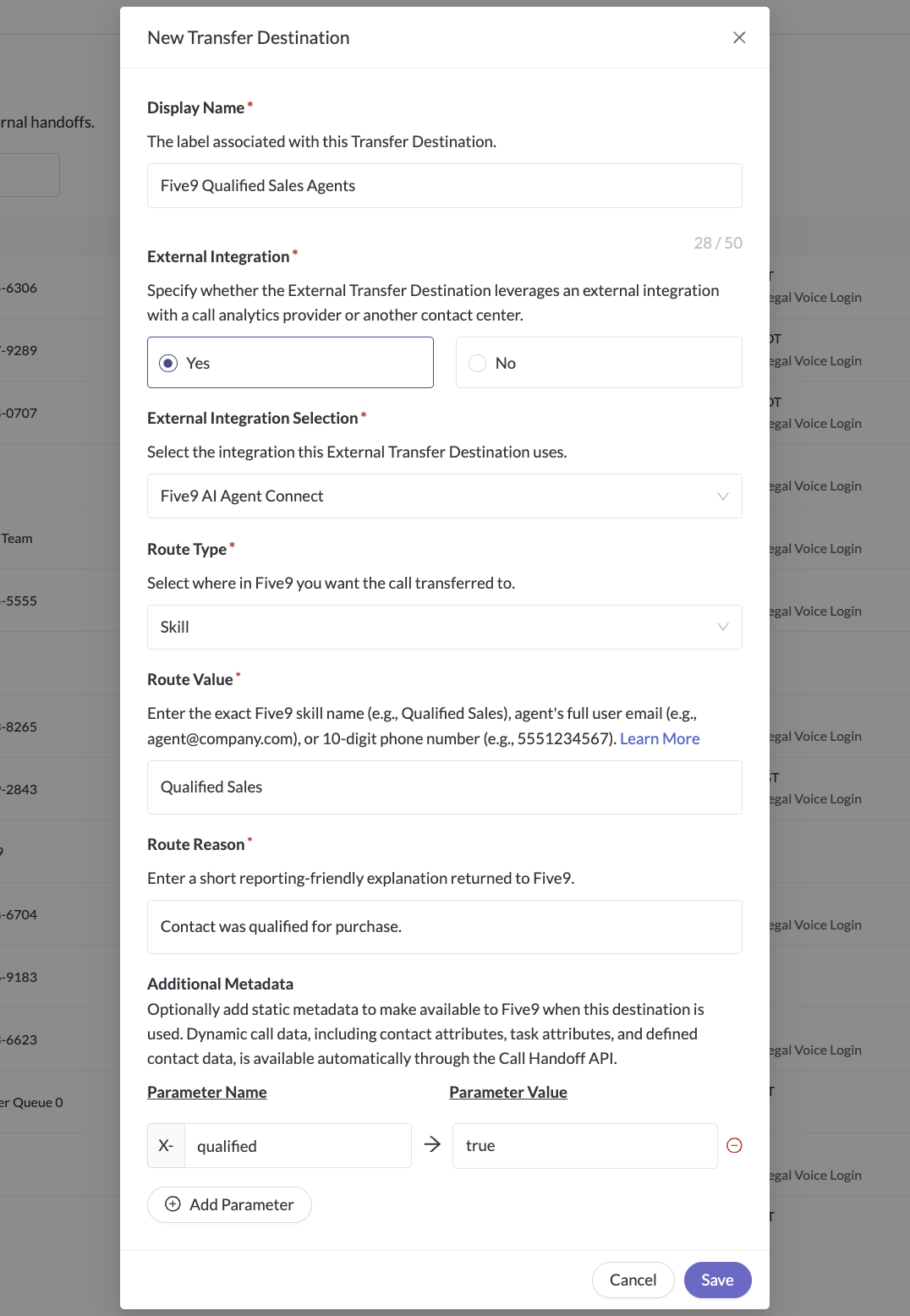
- (Optional) Add up to 10 Additional Metadata key/value pairs — static values you want included every time this destination is used (in addition to the contact and call data Regal sends automatically)
- Save
Step 4: Configure your AI agent(s) to use the destination(s)
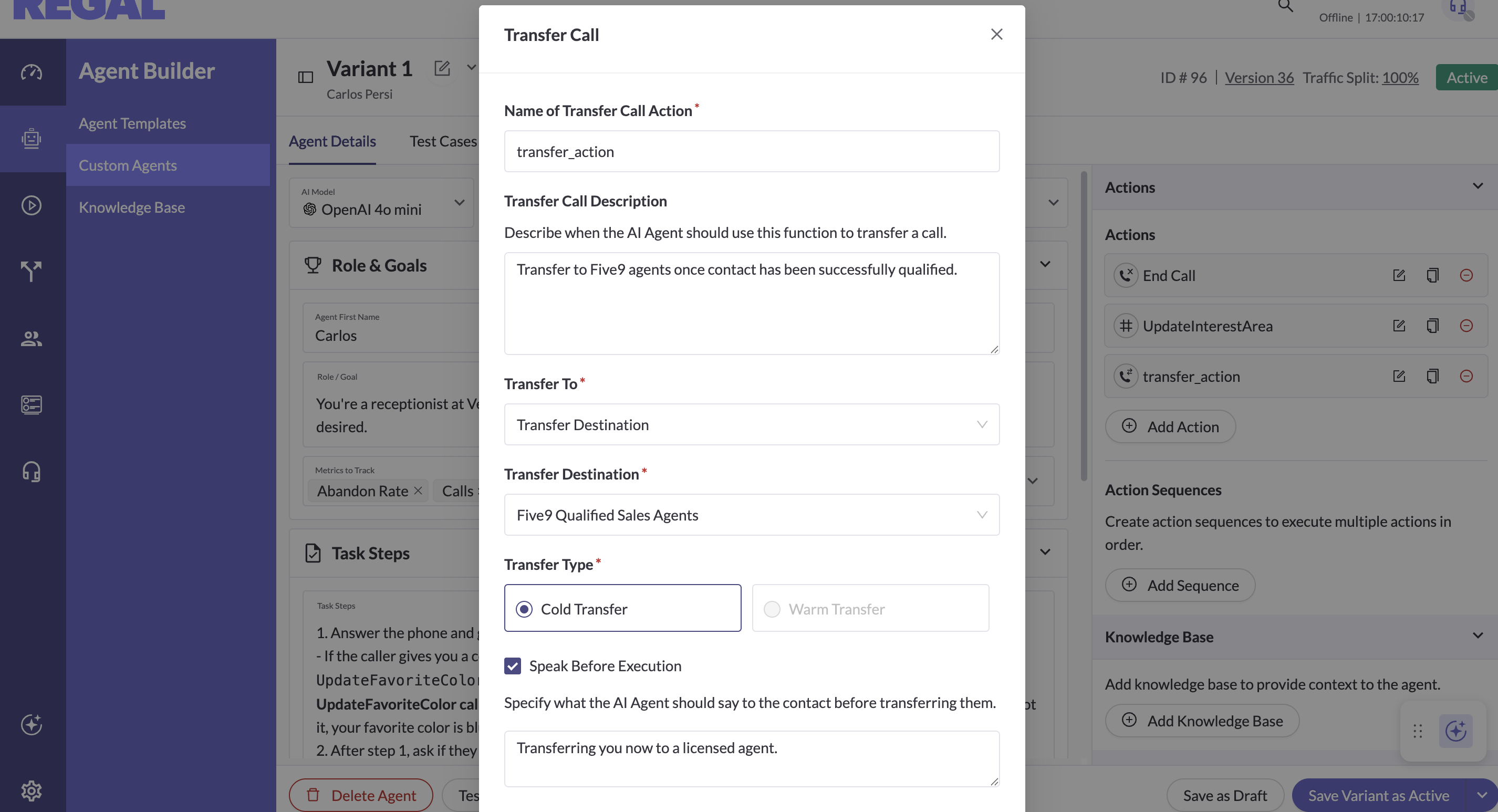
- On your AI agent's Transfer action, select the relevant Five9 destination
- Note: AI Agent Connect handoffs are always cold transfers. If you need warm transfer for a given use case, you can set up a separate standard SIP transfer destination with SIP INVITE instead (see Receiving a SIP call from Regal in the SIP integration guide).
Step 4: Configure your Five9 IVR
Work with your Forward Deployed Engineer and Five9 Support Team to configure your Five9 IVR to:
- Route the relevant calls to Regal over the SIP trunk from Step 1
- Detect when Regal has left the call, and make the outcome/routing request back to Regal (the "Supervised Transfer" step) to learn what to do next
- Parse the routing response to decide whether to end the call or route it to the right skill, queue, or agent, and use the returned data to populate the agent's screen pop
What data is included in the handoff
When Five9 asks Regal what to do with a call by hitting the Call Handoff API, Regal returns:
Routing instructions:
| Field | What it tells Five9 |
|---|---|
| Route type | Whether to route to a skill, an external number, a specific agent, or simply hang up |
| Route value | The destination for that route type (skill name, phone number, agent ID) |
| Route reason | A short outcome description for your Five9 reporting (e.g. caller hung up, agent ended the call, an error occurred) |
Call data, made available to Five9 for screen pops and reporting:
- Any Additional Metadata you configured on the transfer destination
- Task/call details from the interaction — including the SIP headers your Five9 IVR originally sent to Regal
- Contact data your AI agent collected or already had on file during the call (e.g. name, zip code) — whatever your agent is configured to collect
FAQ
Do I need a new SIP trunk for AI Agent Connect?
No — it uses your existing shared Twilio ↔ Five9 SIP trunk. See CCaaS / SIP Integration if you haven't set that up yet.
I need warm transfer for my Five9 use case — can I get that through AI Agent Connect?
No — AI Agent Connect only supports cold handoff. For warm transfer, configure a standard SIP transfer destination using SIP INVITE instead (see Receiving a SIP call from Regal in the SIP integration guide).
Updated 26 days ago