

Regal MCP
Give your external tools and AI clients guided, permissioned access to Regal data and workflows.
Overview
Regal MCP extends the same AI-assisted workflow pattern that powers Regal Copilot to any MCP-compatible client outside the Regal app. Teams can query Regal data, inspect workflows, and run guided actions from their own AI editors, internal tools, batch scripts, and custom applications — all scoped to their brand and gated by Regal Auth.
MCP (Model Context Protocol) is the open standard that lets AI clients discover and call tools exposed by a server. Regal pairs its MCP tools with Skills — packaged workflow instructions that tell the AI how to use Regal tools for specific goals — so external users get guided workflows, not just raw API access.
When to use Regal MCP
| Use case | What it enables |
|---|---|
| AI client integrations | Connect Cursor, Claude, ChatGPT, or your own AI client to Regal context and actions. |
| Batch analysis | Run structured analysis across calls, journeys, or contact data from scripts or notebooks. |
| Custom internal apps | Build internal tools that query Regal context and surface it to your team. |
| Workflow extensions | Extend Regal workflows into your own systems while keeping the AI grounded in Regal-specific Skills. |
Access
Regal MCP uses OAuth 2.0 authentication via Okta — the same login as your Regal application. Once you add the server config to your AI client, you'll be prompted to log in via browser the first time the server connects. After authenticating, your session token is handled automatically and you don't need to hardcode any credentials.
SSO usersIf your organization uses Okta SSO, additional one-time configuration is required before you can authenticate. See Okta SSO for MCP.
MCP server URL: https://mcp.regal.ai/v1/external-mcp/mcp
Cursor
- Open Cursor and go to Settings → Tools & MCP → Installed MCP Servers.
- Click Add MCP Server and paste the config below, or manually add it to
.cursor/mcp.jsonin your project root (project-scoped) or~/.cursor/mcp.json(global). - Fully quit and reopen Cursor — MCP servers only load at startup.
- On first use, Cursor will open a browser window prompting you to log in to Regal to complete authentication.
{
  "mcpServers": {
    "RegalMCP": {
      "url": "https://mcp.regal.ai/v1/external-mcp/mcp"
    }
  }
}
Note: Cursor has a limit of ~40 active tools across all MCP servers combined.
Claude Desktop
Option A — Config file
- Open Claude Desktop and go to Settings → Developer → Edit Config. This opens (or creates) the config file in your default editor.
- macOS:
~/Library/Application Support/Claude/claude_desktop_config.json - Windows:
%APPDATA%\Claude\claude_desktop_config.json
- macOS:
- Add the Regal server entry inside the
mcpServersobject and save.
{
  "mcpServers": {
    "RegalMCP": {
      "command": "npx",
      "args": [
        "mcp-remote",
        "https://mcp.regal.ai/v1/external-mcp/mcp"
      ]
    }
  }
}- Restart Claude Desktop.
- On first use, a browser window will open prompting you to log in to Regal.
Option B — Connections UI
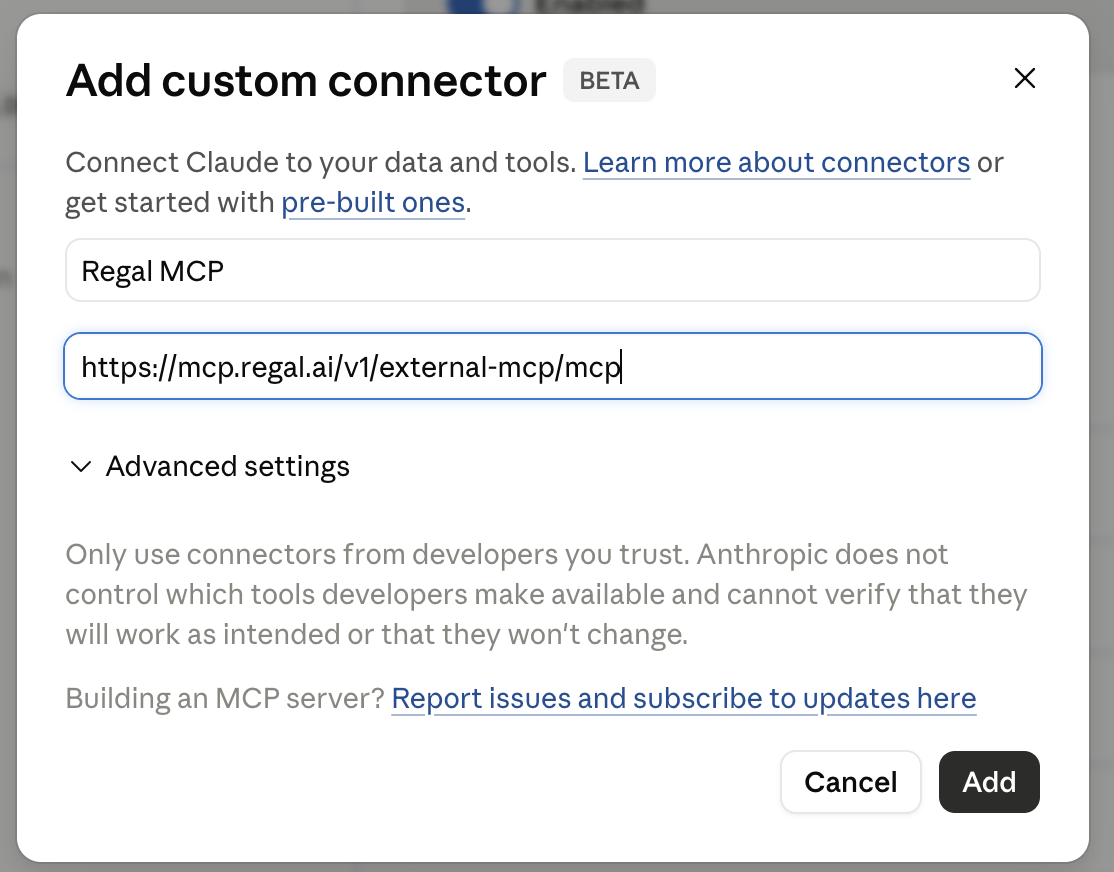
- Go to Settings → Connections → Connectors and click Add.
- Enter
Regal MCPas the name andhttps://mcp.regal.ai/v1/external-mcp/mcpas the URL, then save. - Find Regal MCP under Connections → Connectors — you'll be prompted to log in to Regal to authorize.
Claude Code (CLI)
- Run this command in your terminal to add Regal MCP:
claude mcp add --transport http --scope user RegalMCP https://mcp.regal.ai/v1/external-mcp/mcp--scope usermakes the server available across all your Claude Code sessions. Use--scope local(default) to limit it to the current project, or--scope projectto share it with your team via.mcp.json.
- Start a Claude Code session and run
/mcpto authenticate:
A browser window will open prompting you to log in to Regal. After completing login, your session token is stored and refreshed automatically.
Codex (App & CLI)
The Codex desktop app and CLI share the same config file, so this setup covers both.
- Edit
~/.codex/config.toml(global) or.codex/config.tomlin your project root (project-scoped). In the Codex IDE extension, you can open this via the gear menu → MCP settings → Open config.toml. - Add the following block:
[mcp_servers.RegalMCP]
url = "https://mcp.regal.ai/v1/external-mcp/mcp"- Run the following command to authenticate via OAuth:
codex mcp login RegalMCPA browser window will open prompting you to log in to Regal. After completing login, Codex handles the session token automatically.
ChatGPT
Full MCP connector support requires a ChatGPT Business or Enterprise workspace. Admins must first enable Developer Mode at Workspace Settings → Permissions & Roles → Connected Data.
- Go to Settings → Connectors → Create.
- Enter a name (e.g.
Regal) and set the server URL tohttps://mcp.regal.ai/v1/external-mcp/mcp. - Save — you'll be prompted to log in to Regal via browser to authorize the connection.
Tools
All tools are scoped to the authenticated brand — no cross-tenant access is possible.
The external surface is a subset of what in-product Regal Copilot uses. Agent-builder helper tools, Copilot session UI tools, and the observability metrics tools are not exposed on the external MCP endpoint.
General purpose
| Tool | Description |
|---|---|
get-brand | Fetch your brand's configuration, including telephony, compliance, and queue settings. |
query-regal-kb | Query the Regal knowledge base with a natural language question. |
list-regal-skills | List available skills. |
list-knowledge-bases | List your brand's active knowledge bases with source counts. |
fetch-knowledge-base | Inspect one knowledge base — source type, name/URL, status, and counts. |
AI agents (list, fetch, writes)
| Tool | Typical use |
|---|---|
fetch-agent | Fetch the active version of a specific agent variant, including its full configuration and prompt. |
fetch-latest-agent | Fetch highest version (regardless of status: active, draft or deactivated) of a specific agent variant; use before edit-agent for updates.version. |
fetch-agent-version | Fetch a specific historical version of an agent variant (lookup or diffs). |
list-agents / list-ai-agents | List agents with filters (same handler, two names). |
list-ai-agent-variants | Lists the variants of a specific agent. |
list-ai-agent-versions | List version history for one agent (version, name, model, is_active), newest first. |
create-agent | Write — create a new voice or SMS AI agent. |
create-ai-agent-variant | Write — create a new variant on an existing agent; saved at 0% traffic. |
set-variant-traffic-allocations | Write — set traffic % across all variants of an agent (must sum to 100). |
edit-agent | Write — update agent; always saves as draft. |
save-agent-live | Write — publish an agent (or variant) live; requires explicit confirm_publish=true. |
list-ai-agent-templates | List available AI agent templates. |
fetch-ai-agent-template | Fetch a specific AI agent template. |
Test cases
| Tool | Typical use |
|---|---|
fetch-test-cases | List test cases for an agent. |
create-test-cases | Write — create tests (max 10 per call). |
edit-test-case | Write — update one test case. |
propose-test-case-changes | Build a test-case change proposal for review before applying an edit. |
delete-test-cases | Write — delete tests by id. |
Simulations
| Tool | Typical use |
|---|---|
start-simulation-run | Start a simulation run against an agent and a set of test cases. |
get-simulation-run-progress | Poll run status and per-case results until completed=true. |
list-simulation-runs | List past simulation runs for an agent, newest first. |
fetch-simulation-transcript | Read simulation transcript for analysis. |
Production recordings and transcripts
| Tool | Typical use |
|---|---|
list-recordings | Filter and page recordings (e.g. agent, disposition, search). |
fetch-recording-transcripts | Load transcript + metadata for up to five recording_sids per call. |
get-trackers-lookup | Tracker lookup helper for transcript-related workflows. |
Profiles and contacts
| Tool | Typical use |
|---|---|
lookup-profile | Look up a contact profile by phone, email, name, or external ID. Returns multiple candidates if the query is ambiguous. |
fetch-profile | Fetch a full contact profile by profile ID. |
list-profile-versions | List all saved versions of a contact profile. |
fetch-profile-version | Fetch a specific historical snapshot of a profile. |
fetch-profile-events | Fetch event history for a contact profile, with type and cursor-based pagination. |
Journeys
| Tool | Typical use |
|---|---|
list-journeys | Search / list journeys. |
fetch-journey | Fetch a full journey definition, including its flow and node configuration. Webhook auth headers are redacted. |
list-journey-versions | Version history for a journey. |
fetch-journey-version | Full payload for one version (useful for diffs). |
list-profile-journey-executions | List journey executions for a given contact profile. |
get-profile-journey-execution-nodes | Get the node-level detail of a specific journey execution. |
IVRs
| Tool | Typical use |
|---|---|
list-ivrs | List IVRs for the brand. Filter by friendly ID or name. |
fetch-ivr | Fetch a single IVR by ID, including the full node definition. |
Event schema
| Tool | Typical use |
|---|---|
list-event-definitions | List known event names for a category (regalVoiceEvent or customEvent). |
get-event-schema | Field names, types, and stable field IDs for one event (contact attributes via identify). |
Task routing and queues
| Tool | Typical use |
|---|---|
list-tasks | List tasks with filters (state, queues, time window, etc.). |
fetch-task | One task by customer Task id. |
get-task-events | Routing / reservation timeline for a task. |
list-users | Browse brand users/agents. |
fetch-user | User/agent by email (capacity, queues, attributes). |
list-queues | Queues and eligibility expressions. |
get-routing-rules | Active routing rulesets. |
get-routing-rule-versions | Version history for a ruleset. |
Custom analysis & dispositions
| Tool | Typical use |
|---|---|
list-analysis-data-points | List custom ai analysis field definitions (paginate when has_more). |
create-analysis-data-points | Create one or more new custom ai analysis data points. |
edit-analysis-data-points | Edit one or more existing custom ai analysis data points. |
delete-analysis-data-points | Delete one or more existing custom ai analysis data points. |
list-dispositions | Lists dispositions in the account. |
create-dispositions | Creates dispositions (max 10 per call). |
edit-dispositions | Updates existing dispositions (max 10 per call). |
Phone number management
| Tool | Typical use |
|---|---|
list-business-profiles | List your business profile(s). |
list-active-phone-numbers | Lists your Regal provisioned phone numbers. |
list-branded-phone-numbers | Lists your phone numbers that were uploaded for branded caller id and/or spam remediation. |
create-branded-phone-number | Adds a phone number for branded caller id and/or spam remediation. |
update-branded-phone-number | Updates a phone number for branded caller id and/or spam remediation, including registering/unregistering numbers for carriers. |
delete-branded-phone-number | Deletes a phone number from branded caller id and/or spam remediation. |
Data Analysis
| Tool | Typical use |
|---|---|
list-metrics | Return the catalog of available observability metrics (cubes, measures, dimensions). Call this first to discover what's available. |
query-metric | Query one metric from the catalog — measures, dimensions to group by, time range or date range, granularity, filters. |
Skills
Skills provide reusable, tested instructions for common workflows to the client LLM; names are stable skill ids:
| Skill | Use for |
|---|---|
build-agent-workflow | Build a new single-state voice or SMS agent. |
build-multi-state-agent | Build a new multi-state / branching agent. |
iterate-agent | Change, fix, or improve an agent that already exists. |
generate-test-case-prompt | Generate test cases for an agent. |
run-simulations-workflow | Run simulations / test cases against an agent. |
post-simulation-analysis-workflow | Analyze results of a completed test run. |
analyze-transcript | Analyze a single call recording. |
analyze-transcripts | Analyze multiple recordings — patterns, themes, filter batches. |
profile-investigation | Investigate contact / profile data, versions, and field changes. |
troubleshoot-journey | Investigate or diff a single journey. |
audit-journeys | Cross-journey audit or inventory spanning all journeys. |
troubleshoot-ivr | Investigate, explain, or compare IVRs. |
troubleshoot-task-routing | Investigate task routing, queues, and rule changes. |
analyze-metrics | Analyze data points and trends using querying tools. |
Helpful Notes
Recommended starting prompts
These patterns work well with Regal MCP because they give the AI a bounded task, a clear Regal object, and an expected output.
Review AI agent transcripts
"Fetch the last 10 recordings for agent [name] and summarize the most common objections customers raised. Group by theme and flag any calls where the agent deviated from the expected flow."
Debug a task or routing issue
"Look up the task with SID [sid]. Fetch its routing events and tell me where in the routing flow it stalled or failed. Cross-reference the queue and routing rules if available."
Fetch and diff a journey definition
"Fetch journey [name or ID] and its two most recent versions. Summarize what changed between them, focusing on flow logic, node types, and any webhook configurations."
Inspect a contact's history
"Look up the profile for [phone or email]. Fetch their recent events and any active journey executions. Give me a timeline of their last 7 days of activity."
Analyze call quality for a segment
"List recordings from the last 7 days for disposition [value]. Fetch transcripts for up to 50 and identify the most common reasons customers were dissatisfied."
Review agent configuration before a launch
"Fetch the latest version of agent [name]. Summarize its prompt, configured tools, and any active variants. Flag anything that looks incomplete or inconsistent."
Walk an IVR end to end
"Fetch IVR [friendly ID or name] and walk me through the flow node by node. Flag any dead ends or nodes with no matching input."
General approach
Start specific. Give the AI a named object (agent ID, recording SID, contact phone, journey name) rather than an open-ended question. Regal MCP tools return structured data — the more specific the input, the more useful the output.
Chain tools intentionally. Many useful workflows involve two or three tools in sequence: lookup-profile → fetch-profile-events → list-profile-journey-executions. Describe the end goal and let the AI plan the chain, or specify the steps yourself if you want predictable behavior.
Use Skills for repeatable work. If your team runs the same analysis or review workflow regularly, package it as a Regal Skill so the AI follows the same steps each time instead of improvising.
Keep humans in the loop on writes. edit-agent always saves a draft. save-agent-live is the only path that publishes to customer-facing traffic, and it requires an explicit confirmation flag. Confirm tool arguments before execution, especially in clients that show a preview before calling.
Metrics are not on the external endpoint. Observability metrics (list-metrics / query-metric) and the analyze-metrics workflow are available in in-product Regal Copilot only. For metric questions, use Copilot in the Regal app.
Watch for the routing rules gap. get-routing-rules and get-routing-rule-versions may require a UI session and can return an error from the external MCP endpoint. Use list-queues as a workaround for queue-level context in the meantime.
Updated about 1 month ago