

Handle iOS Call Screening
Apple's iOS 26 (released September 2025) introduced an opt-in Call Screening to allow consumers to screen calls from unknown numbers. When enabled, calls from numbers not saved in a contact’s address book may be intercepted by an automated screener, the results of which are presented to the contact to choose whether to answer the call.
Regal's iOS Call Screening Detection automatically detects when the screener is reached so your AI Agents can respond appropriately and preserve connect and voicemail rates.
Regal's iOS Call Screening Detection feature is currently in Early Access. Reach out to your FDE for access.
What Is Regal’s iOS Call Screening Detection?
Regal’s Progressive Dialer AMD uses live transcription to automatically detect when a call reaches Apple's iOS Call Screening. This allows your agent to navigate the screener and potentially get connected with the contact.
When Regal's AMD algorithm detects that the iOS Call Screener has been reached, your agent remains on the call so that they can respond to the screener questions. Then, depending on the outcome of the screening (contact answers or call goes to answering machine), the agent can continue the call with the contact or drop a voicemail.
How to use Regal’s iOS Call Screening Detection
Once Regal's iOS Call Screening Detection is enabled for your brand, all progressive dial calls will automatically have this detection within the AMD algorithm.
Prompting Your AI Agent to Navigate the Screener
While our detection algorithm will keep agents connected to calls that reach the screener, your AI Agents should be prompted to recognize and navigate the screener and it's outcomes.
1. Initial Screener Interaction
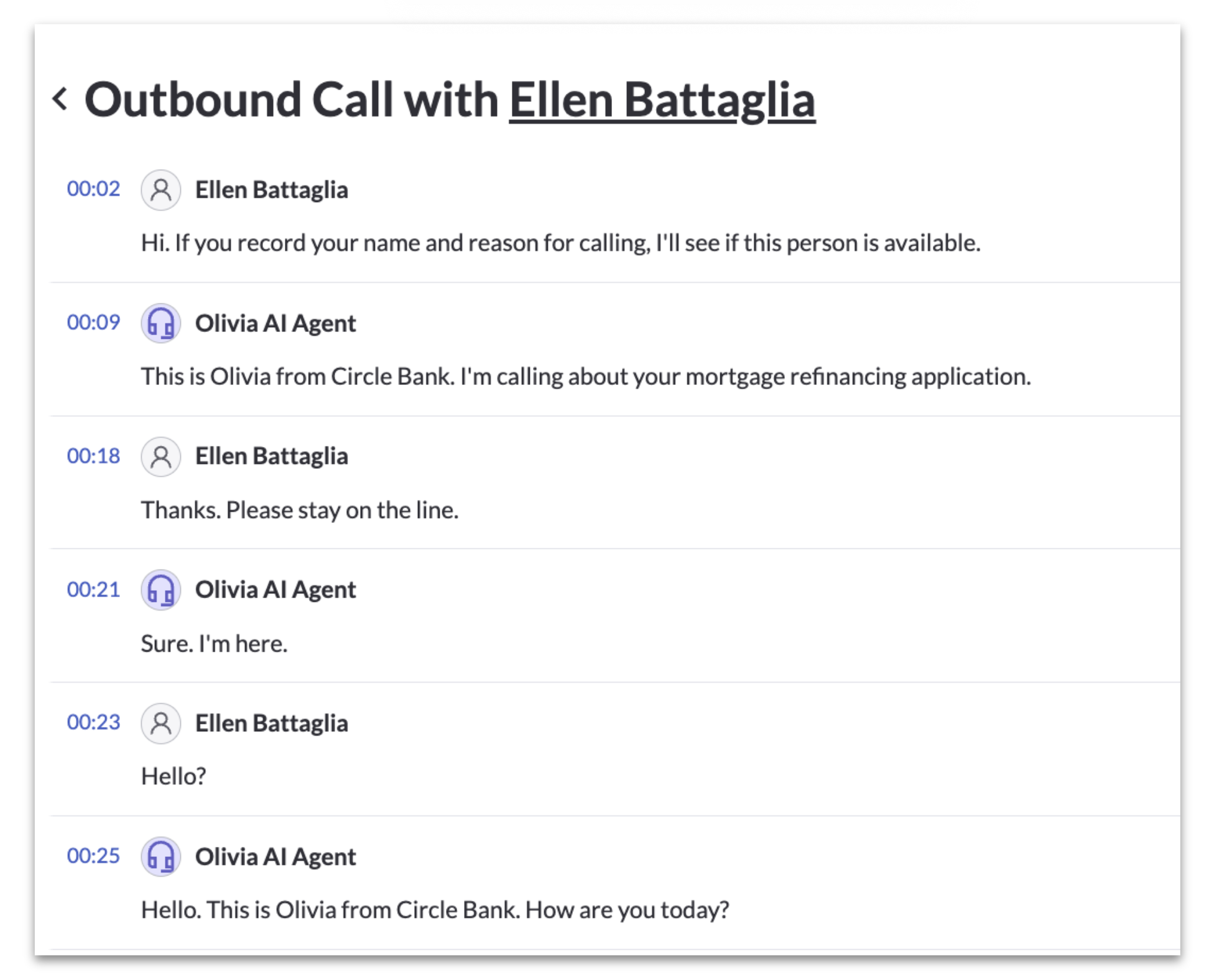
The iOS screener opens with:
"Hi. If you record your name and reason for calling, I'll see if this person is available."
When this happens, the agent should:
- Immediately state its name and a concise reason for calling.
- Avoid asking questions.
After the agent responds, the screener states:
"Thanks. Please stay on the line."
At that point, the agent should pause and wait.
2a. Call Goes to Voicemail (Most Common)
In most cases, after the screener interaction the call will ring briefly and then be sent to voicemail. In these cases, the agent will hear:
"I'm sorry. This person is not available. If you would like to leave an additional message, please reply after the tone. beep"
To drop voicemails on these calls, you should add voicemail-based prompting to your AI Agent using the Voicemail Drop
2b. Contact Answers
If the contact answers the call at any point, the call will immediately connect to the contact. The agent should start the conversation with the contact following it's normal flow.
Example Prompt Snippet
Below is an example prompt snippet that addresses the above guidance, for a scenario where AI Agent Ethan is a confirmation agent with Circle Home Services.
## iOS Call Screening Handling
- If at any point in the call the customer says "Hi. If you record your name and reason for calling. I'll see if this person is available", or anything along those lines, ALWAYS say: "My name is Ethan and I'm calling to confirm your appointment at Circle Home Services."
- This is the IOS Screener and your job is to detect this and respond appropriately.
Once you respond, the call screener will likely say "Thanks Ethan, please stay on the line.". At that point, wait for the customer to greet you (something like "hello?") and then continue with the conversation as normal.
- If the call screener says exactly "I'm sorry. This person is not available. If you would like to leave an additional message, please reply after the tone" leave the voicemail message by invoking /voicemail_drop and end the call.
Monitoring Results
To understand how iOS Call Screening is impacting your outbound dialing, you can leverage Custom AI Analysis and Dispositions for analysis in Reporting and Conversation Intelligence.
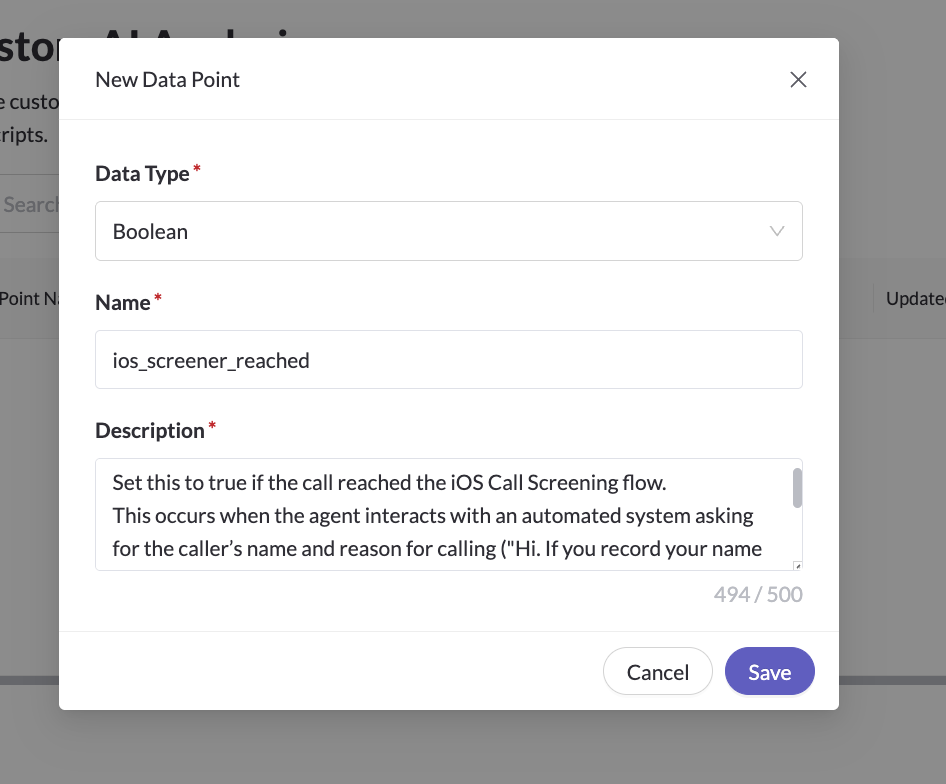
Custom AI Analysis data points are useful to track how often your AI Agents encounter call screening and what happens next. For example, you can configure a custom data point to track whether the screener was reached:
- Data Type: Boolean
- Name: ios_screener_reached
- Description: Set this to true if the call reached the iOS Call Screening flow. This occurs when the agent interacts with an automated system asking for the caller’s name and reason for calling ("Hi. If you record your name and reason for calling, I'll see if this person is available."), and then tells the caller to stay on the line ("Thanks. Please stay on the line."). Set this to false if the call did not encounter the iOS Call Screener, including normal human answers or standard voicemail greetings.
Dispositions help you understand call outcomes. You can combine Custom AI Analysis with Dispositions to get a full picture of what happened on calls that reached the screener. For example:
- Call Screener → Voicemail
- ios_screener_reached = true
- Disposition = Pre-Recorded Voicemail (Calls with the Voicemail Drop action invoked are dispositioned as "Pre-Recorded Voicemail")
- Call Screener → Contact Connect
- ios_screener_reached = true
- Disposition = any conversation-happened disposition (e.g. Connected, Completed Conversation)
By leveraging Custom AI Analysis and Dispositions, you can:
- Track the percentage of outbound calls that reach iOS Call Screening in Reporting
- Measure how often calls that reach the screener connect to the contact vs. go to voicemail in Reporting
- Identify screener calls to evaluate AI Agent behavior in Conversation Intelligence to optimize prompting
Updated 6 months ago