

Custom Actions
Give your AI agents custom tools to take action like a real agent
Use Custom Actions to let your AI Agent post structured data to Regal or external systems during a conversation, then react to the response.
Custom Actions are useful when your AI Agent needs to do more than talk, such as updating profiles, logging activity, validating inputs, or triggering business logic. This page shows you how to define and configure a Custom Action in the Regal AI Agent builder.
When to Use a Custom Action
Create a Custom Action when your agent needs to:
- Update a contact profile in Regal
- Trigger an event
- Trigger actions handled by code hosted outside of Regal (e.g., scheduling endpoints, validating data, getting information from a pricing sheet or integrating with any custom APIs)
Custom Actions That Require EngineeringSome Custom Actions that post data to an endpoint, including Regal's
/eventsendpoint, can be configured entirely in Regal without external middleware. Other Custom Actions need code outside Regal that returns a result your AI Agent can use, such as looking up a county name from a ZIP code. Your engineers can write this code, or a Regal AI Expert can build and host it based on the request complexity.
Define the Action
To get started, open your AI Agent in the Regal builder, then click New Action > Custom Action.
When creating a Custom Action, you’ll provide:
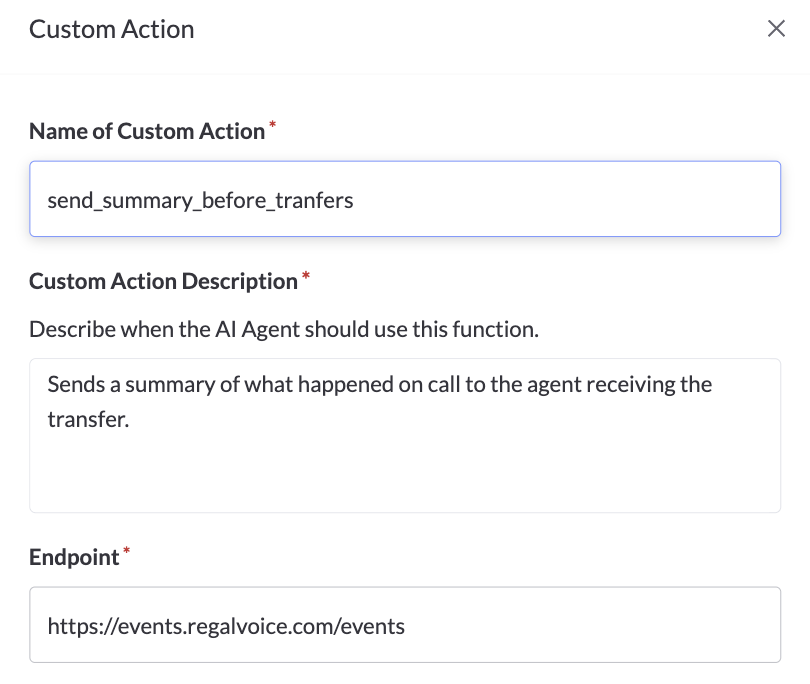
- Name: Use a clear, descriptive label, such as
validate_zipcodeorupdate_profile. - Description: Describe what the action does and when the agent should use it.
- Endpoint: The URL your action will POST to. Supports variable templating — see Dynamic Endpoint URLs below.
- HTTP Method: The method used to call your endpoint (e.g., GET, POST, PATCH). Choose the method your API expects.
- Headers (optional): Add any headers the endpoint requires, such as authentication keys or content type.
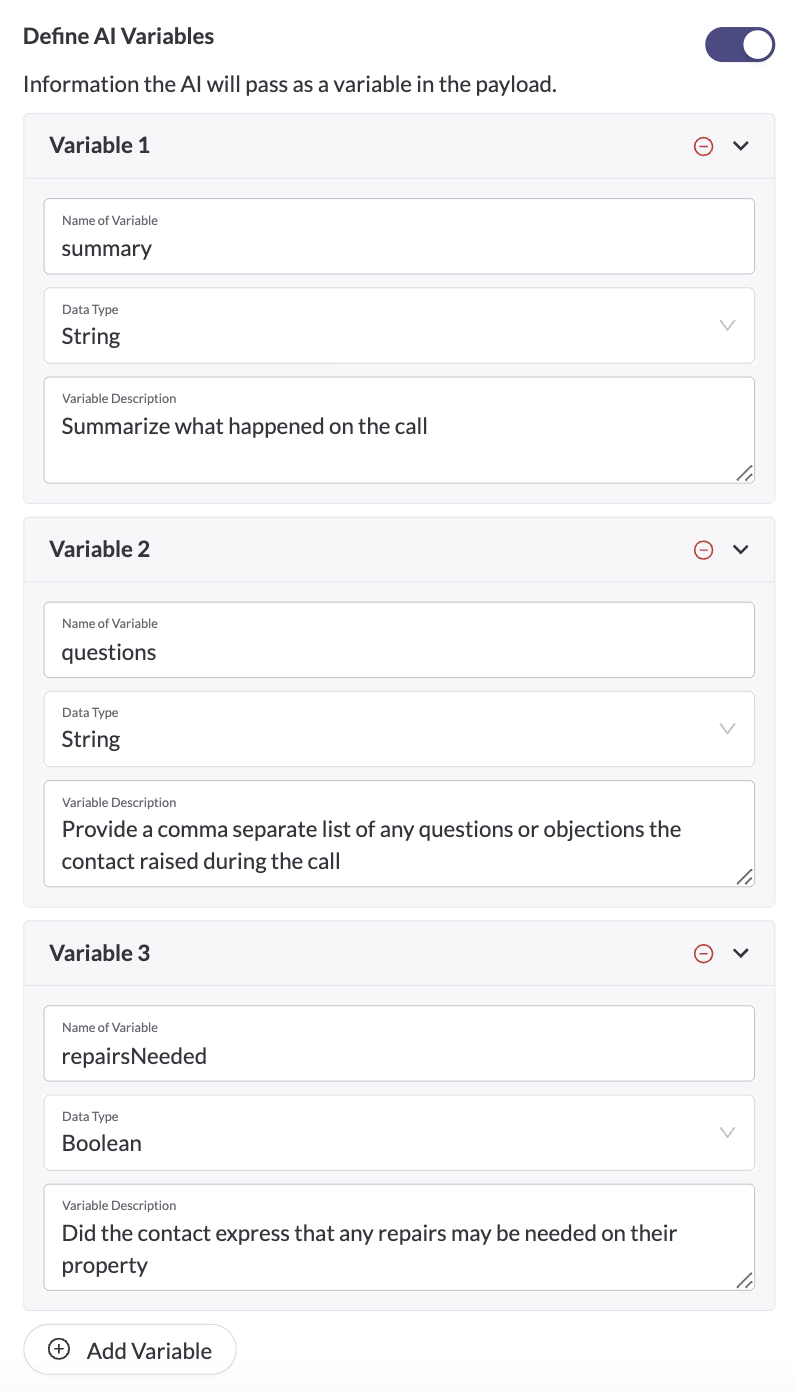
- AI Variables: Add any variables your agent needs to collect during the conversation so they can be referenced in the payload.
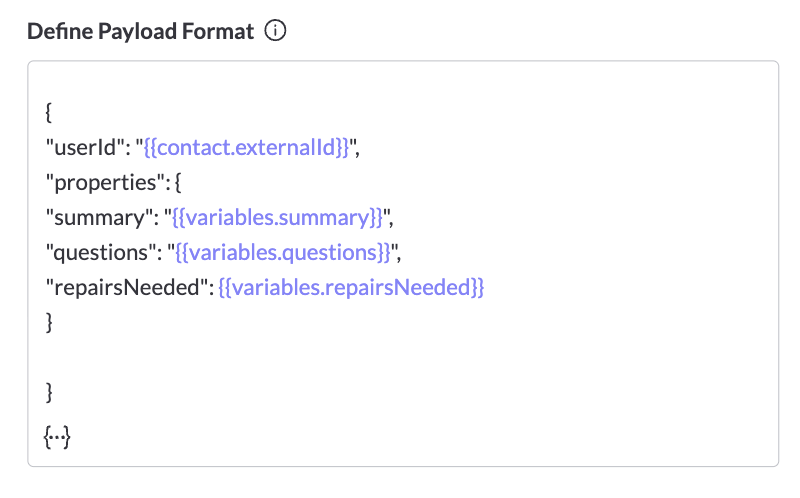
- Payload Schema: Define the structure of the data the action will send to your endpoint using a simple JSON schema.
- Speak During Execution (optional): Enter the message the AI Agent should say while running the action if the action takes more than 2 seconds to execute.
- Speak After Execution (default, optional): Choose whether the AI Agent should continue the conversation automatically based on the Custom Action output, or wait for additional user input before continuing. In most cases, keep this on so the AI Agent can progress the conversation.
Configure the Payload
Custom Actions allow you to customize the payload sent to your endpoint. You can include both Contact Attributes (from the contact's profile) and AI Variables (values your AI Agent collects during the conversation).
Contact Attributes
Include any field in the contact profile using handlebar notation. For example:
"field_value": "{{contact.address.zipcode}}"
AI Variables
AI Variables allow the AI Agent to pass dynamic values collected during the conversation, such as names, dates, preferences, a summary, or other contextual information the AI Agent stores as it talks to the contact.
- Name: What you’ll reference in the payload using handlebar notation, such as
{{variables.product_preference}}. - Type: The value type, such as string, number, or boolean.
- Description: The context that helps the model understand what kind of value to pass, such as "The product the contact expressed interest in".
Once you’ve defined your AI Variables and identified which Contact Attributes you need, you’ll assemble the payload that gets sent when the action runs. Each key in the JSON body should map to a field your endpoint expects, and the value should be either a contact attribute, AI variable, or hard coded value.
- Reference AI Variables with
{{variables.variable_name}}. - Reference Contact Attributes with
{{contact.attribute_name}}. - Enter hardcoded values directly, such as strings or numbers.
Make sure to add quotes around your string variables.
Example Payload:
{
  "zip": "{{contact.address.zipcode}}",
  "product_preference": "{{variables.product_preference}}"
}
Use these fields to build dynamic payloads that allow your AI Agent to send exactly what your system expects.
Here's an example of a custom action that sends an event to Regal:
Dynamic Endpoint URLs
The Endpoint URL field supports the same {{double bracket}} notation you use in your payload. You can embed contact attributes, task variables, and AI variables directly into the URL itself — as path segments or query parameters. Strings, numbers, and booleans all work.
This is useful for two common API patterns:
| Pattern | Example |
|---|---|
| Path parameters — an account ID or record ID is part of the URL path | https://api.example.com/accounts/{{externalId}}/status |
| Query parameters — values are passed as URL query strings | https://api.example.com/lookup?state={{variables.state}}&zip={{customProperties.zipcode}} |
The variable dropdown is available directly in the Endpoint field — the same one you use when building the payload.
Use the same quoting rules as your payload: string variables should be referenced without quotes in the URL itself (e.g.,?state={{variables.state}}not?state="{{variables.state}}").
Handling Responses
For some Custom Actions, your AI Agent should act differently depending on the response. For example, if you build a validate_phone action that calls a Twilio endpoint and receives valid or invalid, plus landline or mobile when valid, prompt your AI Agent how to behave for each response.
Prompt Example:
Ask the contact what's a good phone number to reach them after hours?
- Invoke
validate_phonewith the contact's response.Wait for the result.
- If the result returns
invalid, ask the contact to repeat their number.- If the result returns
validandmobile, ask the contact for SMS consent.- If the result returns
validandlandline, go to step 2.Invoke
validate_phoneno more than two times.
If the contact has still not provided a valid phone after the second attempt, continue to step 2.
Depending on the type of responses you expect and the format of those, you will need to prompt differently. The above is just an example.
Summary
Custom Actions make your AI Agent interactive and outcome-driven. By combining Contact Attributes, AI Variables, and well-structured payloads, you can create automated workflows that feel personalized and accurate without relying on the model to guess or improvise.
Whether you're updating records, routing calls, or triggering next steps, Custom Actions help ensure your AI Agents stay accurate, actionable, and aligned with your systems.
▶️ VIDEO TUTORIAL
Updated 19 days ago