

Set Contact Data & Response Variables
Capture and reuse in-call data — collected names, API responses, and other values — anywhere in your agent conversation using handlebars.
Overview
Two related capabilities — Set Contact Data and Response Variables — solve the same core problem: using information you gather during a call consistently, at any point in the conversation.
Without these, there was no clean way to reference in-call data later. If you asked for a caller's first name early on, or made an API call that returned useful data, you had no reliable way to use that information 20 minutes into the conversation. These capabilities change that.
Both work the same way: once you define or map a variable, it shows up in the personalization model alongside your existing contact and task attributes. Reference it anywhere — in your agent prompt, in branching logic, in other actions — using the same handlebars syntax you already use.
These variables are in-call only. They are not automatically written back to the contact record after the call ends.
Before You Begin
Before you can use either Set Contact Data or Response Variables, you need to define your variables in the Personalization modal first. This is where you declare the variable names your agent will reference — neither action will have anything to populate until the variable exists there.
Think of it like declaring a variable before using it in code. The Personalization modal is where you register the name; the actions are where you assign the value.
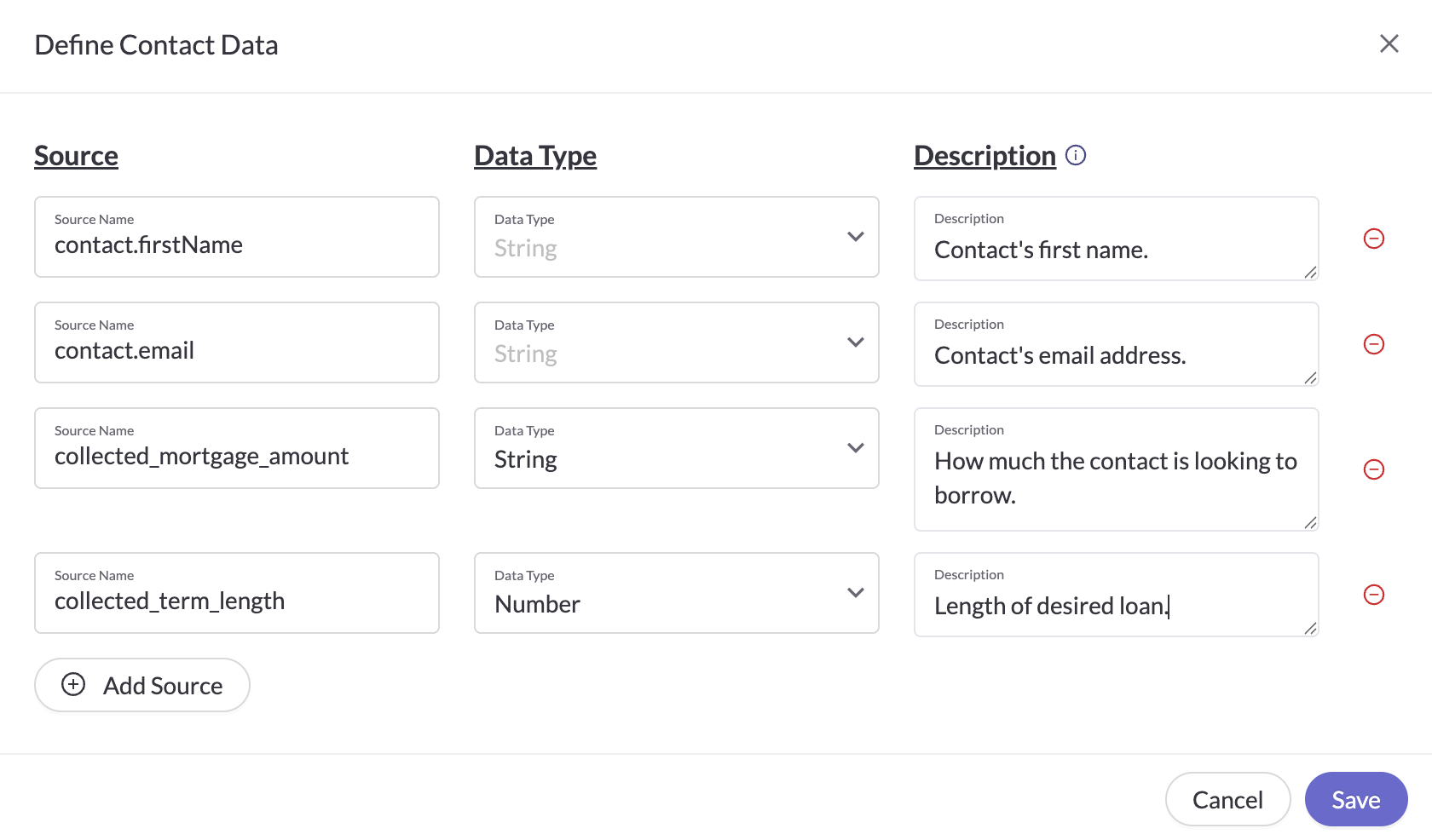
Configure variables to collect and use in the Personalization modal.
Key Use Cases
| Use Case | What It Enables |
|---|---|
| Capture a caller's name mid-conversation | Ask for a first name early in the call, store it with Set Contact Data, and reference it naturally 20 minutes later without any inconsistency. |
| Reuse API response data throughout a call | Make an API call at the start of a call and map response keys to named variables. Reference them in prompts and logic for the rest of the conversation — no custom workarounds needed. |
| Stage data for conditional logic | Collect values at one point in the call and use them to drive branching decisions or action triggers later. |
Set Contact Data
The Set Contact Data action lets you collect and store values during a call so they're available to reference later in the conversation. These aren't pre-loaded from a contact record — they're populated in real time as the conversation unfolds.
Step 1: Define the variables you want to collect in the Personalization modal (see Before You Begin). The action can only populate variables that already exist there.
Step 2: In the Agent Builder, add a Set Contact Data action. Select the variables you want to assign and configure when the action should trigger. You have two approaches:
- Targeted actions: Create individual Set Contact Data actions at specific points in the conversation — e.g., right after collecting a name or confirming a preference.
- Continuous action: Set up one action that triggers throughout the call and updates values as they change.
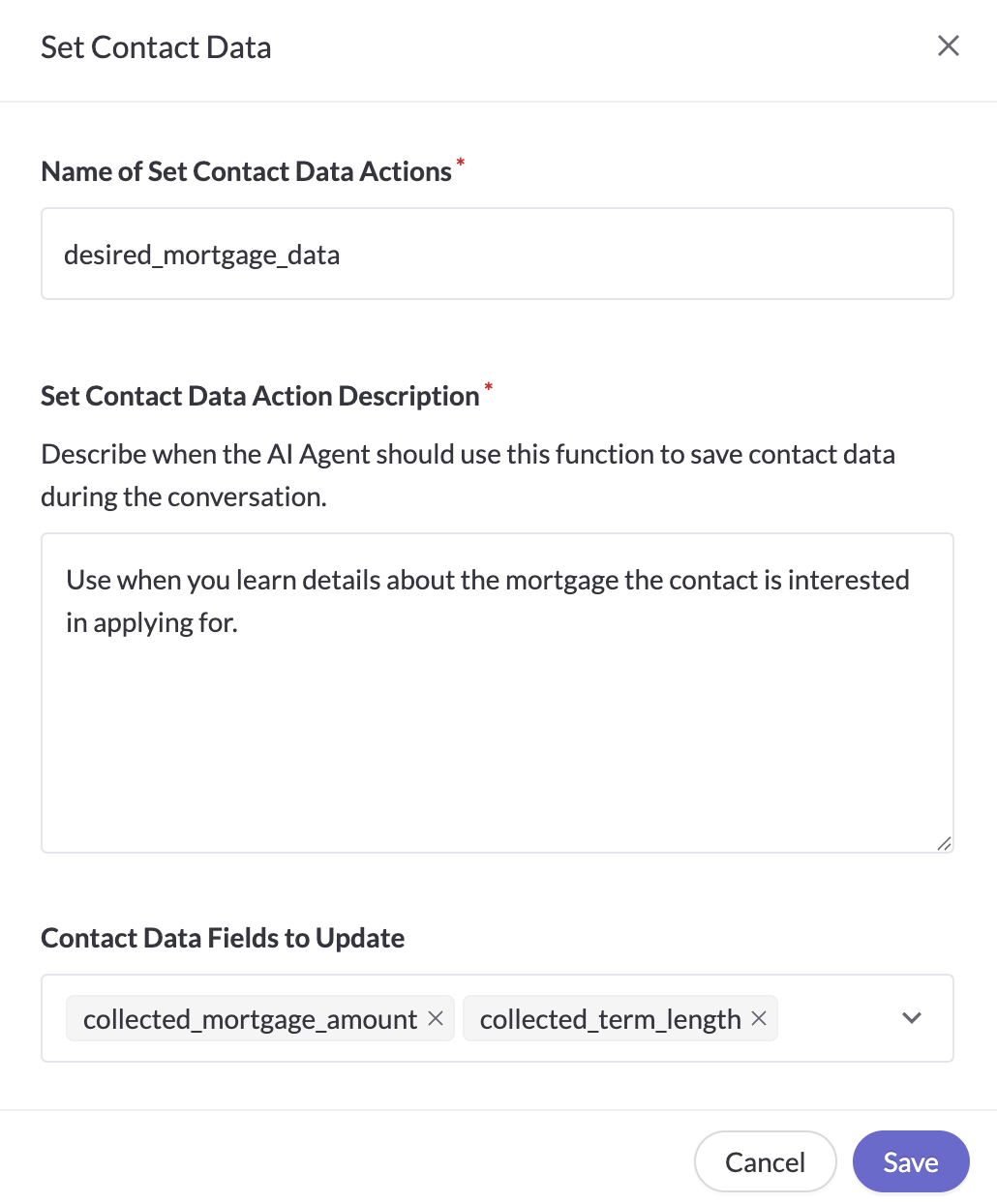
Configure a Set Contact Data action to instruct your agent on what to collect and when to collect it.
Once a variable is set, reference it in your prompt using handlebars — the same syntax you already use for {{contact.first_name}} or {{task.some_attribute}}.
Response Variables
When your agent makes a custom API call, the response comes back as JSON. Response Variables let you map individual keys from that response to named variables — so you can reference them cleanly throughout the rest of the call.
Step 1: Define the variable names you want to map to in the Personalization modal (see Before You Begin). These become the handlebars references you'll use later.
Step 2: In the custom actions modal, open the new Response Variables section. Map each JSON response key to the corresponding variable you defined. Once mapped, those variables are available immediately — in your agent's prompt, in branching conditions, in any subsequent action.
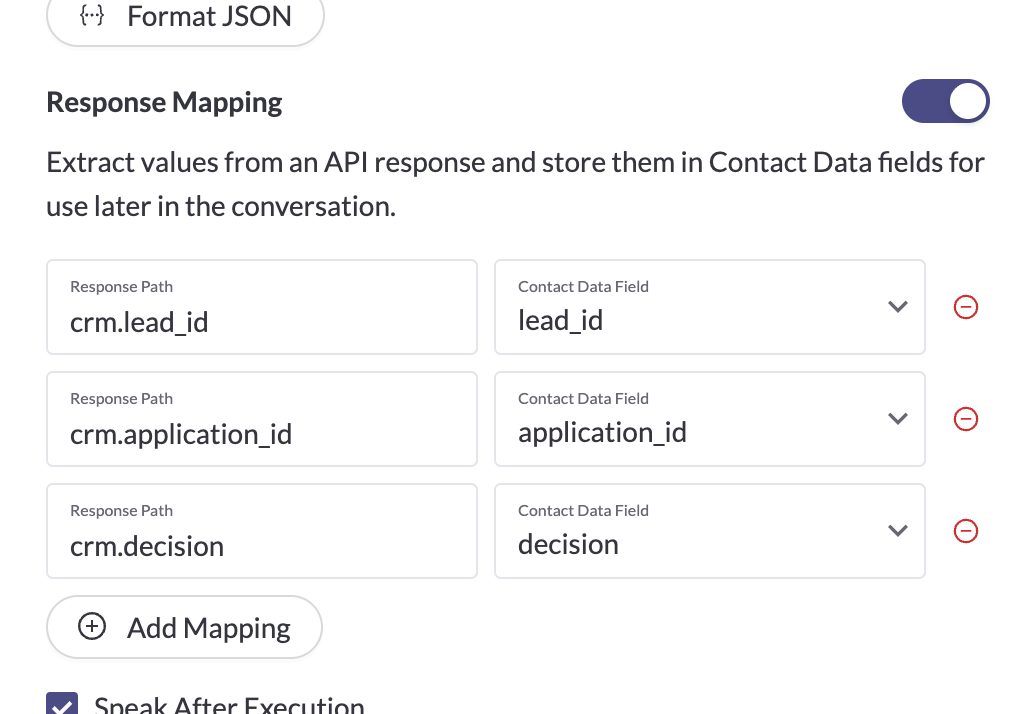
Map API response paths to configured Contact Data fields through Custom Actions.
This replaces inconsistent workarounds for using API response data mid-call. Instead of custom handling for each response, you define the mapping once and reference it like any other attribute.
Troubleshooting & FAQ
I set up a Set Contact Data action but the variable isn't available in my prompt.
Make sure the variable is defined in the Personalization modal first. The action can only populate variables that already exist there — it won't create them on its own.
Can I use these variables in branching logic?
Yes — once defined in the Personalization modal and assigned by an action, they're available anywhere you can reference a contact or task attribute, including branching actions.
Do these values persist after the call?
No. Set Contact Data variables and Response Variables exist only for the duration of the call. If you need to write data back to the contact record, use the Update Contact Profile action instead.
Can I define multiple variables in one Set Contact Data action?
Yes. You can define as many variables as you need in a single action, or spread them across multiple actions depending on when in the conversation you want to capture them.
Updated 7 days ago