

Variants - A/B Testing
Run multiple configurations of a single AI Agent in parallel and split live traffic between them.
Agent Variants let you run multiple configurations of a single AI Agent in parallel. You split live traffic between them and compare outcomes on real production calls.
Every AI Agent starts with exactly one Variant — Variant 1 — by default. You only interact with Variants explicitly once you create a second one.
Key Concepts
Before working with Variants, it helps to understand how they relate to Versions and Drafts:
- Variant: A long-lived traffic bucket. Each Variant represents a distinct configuration of an agent and receives its own share of live traffic.
- Version: An immutable snapshot of a Variant's configuration at the time of saving. Every save creates a new Version. Traffic is always served by the latest Active Version of a Variant.
- Draft: A Version that is not yet Active. Drafts control when changes go live. Variants control how much traffic a set of changes receives.
If you're unfamiliar with how Versions and Drafts work, see Saving and Updating Agents.
The Variants Table
When an agent has only one Variant, clicking it from the Custom AI Agents list takes you directly into the Builder — same as before.
When an agent has more than one Variant, clicking it opens the Variants Table instead.
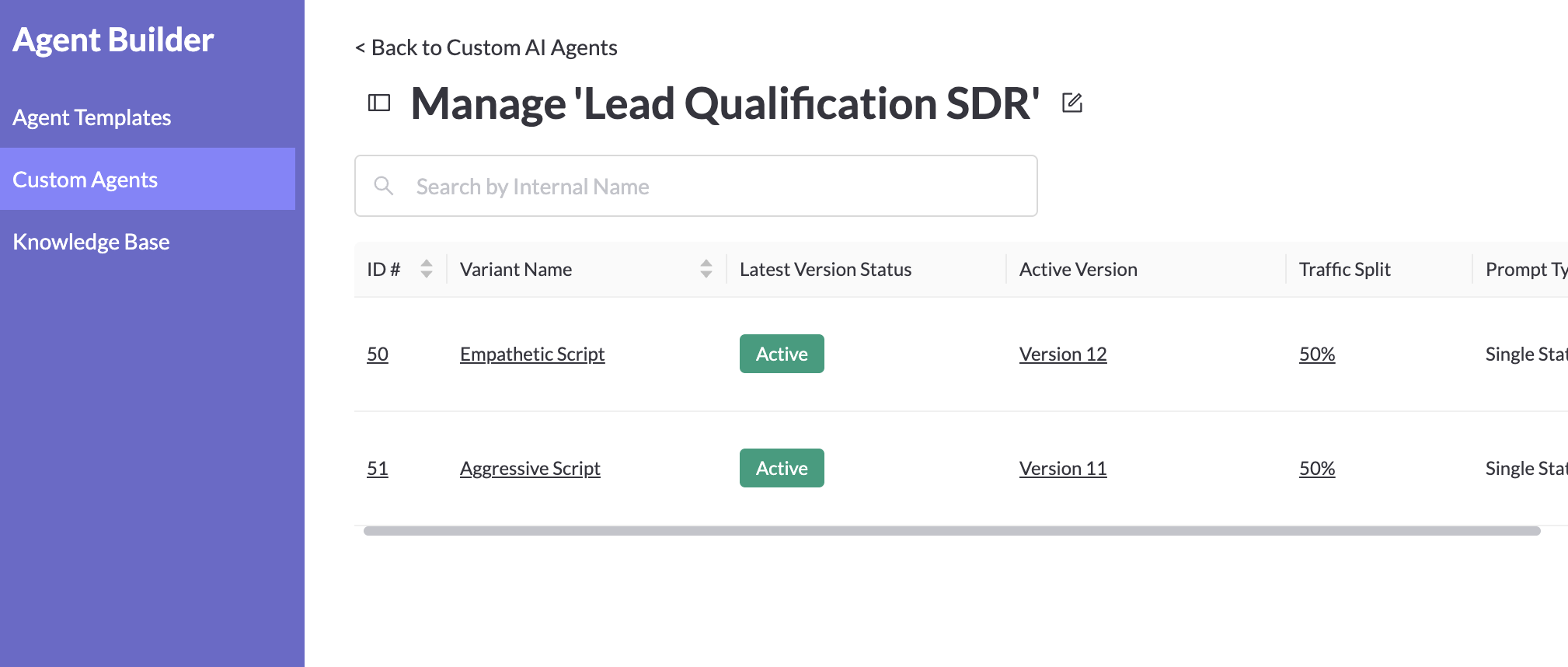
A list of all Variants associated with an AI Agent.
The table shows all Variants for that agent. Clicking a Variant name opens it in the Builder. Each row includes:
- Variant Name: the internal name of the Variant
- Latest Version Status: whether the most recent save is Active or Draft
- Active Version: the Version currently receiving live traffic
- Traffic Split: the percentage of live traffic routed to this Variant
- Prompt Type: whether the Variant uses a Single-State or Multi-State configuration
- Created / Edited: timestamps and the team members who created or last modified the Variant
Each row has Edit, Duplicate, and Delete actions.
Creating a New Variant
New Variants are created from within the Builder by saving your changes as a new Variant instead of updating the current one.
- Open the agent and select the Variant you want to use as a starting point.
- Make your changes in the Builder.
- When saving, choose Save as New Variant.
- Give the new Variant a name.
The new Variant is created with an Active Version 1 and a default traffic allocation of 0%. It will not receive any live traffic until you adjust the split.
Traffic Allocation
Traffic is split at the Variant level. All Variant allocations for a given agent must sum to 100%.
To adjust the traffic split:
- Navigate to the Variants Table for the agent.
- Click Edit Traffic Split.
- Set a percentage for each Variant.
- Save your changes.
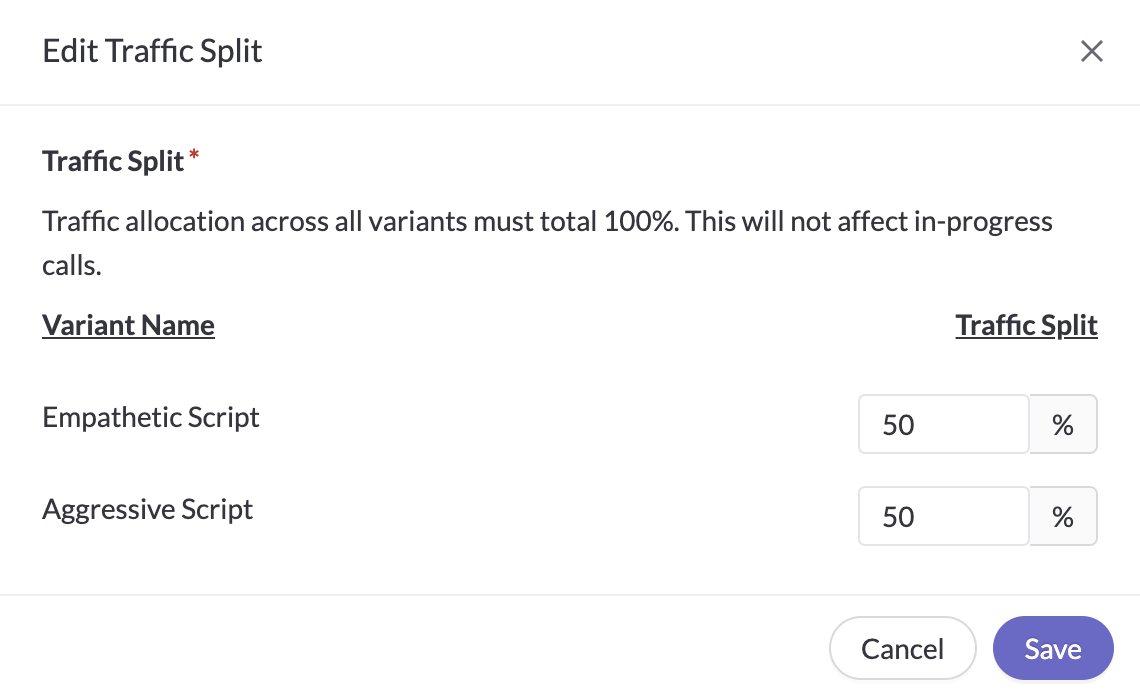
Configure your Traffic Split.
A few things to keep in mind:
- traffic assignment is probabilistic per call — the same contact may be handled by different Variants on different calls
- live traffic always goes to the latest Active Version of the assigned Variant
- a Variant can only be deleted when its traffic allocation is set to 0%
- Variant metrics are preserved historically, even after a Variant's traffic is reduced to 0%
Working in the Builder
The Builder always operates in the context of a single selected Variant. The header clearly shows which Variant and Version you are currently editing.
To switch between Variants, use the Variant selector menu below the agent title. Selecting a different Variant opens it in the same Builder tab.
All edits and saves apply only to the selected Variant — changes do not affect other Variants. Each save creates a new Version scoped to that Variant, and version history in the Builder is scoped to the selected Variant as well.
Restoring a previous Version creates a new Version saved as Draft.
Testing & Simulations
The Test UI and simulations always run against the currently selected Variant by default, using its latest saved Version (Draft or Active).
Test Cases are shared across all Variants of an agent. When you run a simulation, it runs against the currently selected Variant — so you can use the same test cases to compare behavior across Variants.
Reporting
Variant information - specifically, AI Agent Variant Name and AI Agent Variant ID are available in Reporting alongside other task information. This is useful when you're reporting out on outcomes split by vairants and measuring the results of your variant-based experiments.
Task Traceability
Every task is attributed to a specific Agent, Variant, and Version. You can see which Variant handled a call on the Transcript Detail Page and in the Task Slideout.
Variant and Version information is also included in the following Reporting Webhook events:
call.completedcall.transcript.availablecall.analysis.available
Duplicating Variants and Agents
You can duplicate at two levels:
- Duplicate a Variant — available from the Variants Table. Creates a copy of that Variant (including its current configuration) as a new Variant on the same agent, with a traffic allocation of 0%.
- Duplicate an Agent — available from the Custom AI Agents list. Creates a full copy of the agent, including all of its Variants.
Deleting Agents and Variants
To delete a Variant, set its traffic allocation to 0% first, then use the Delete action from the Variants Table.
To delete an agent that has only one Variant, use the Delete option from inside the Builder.
To delete an agent that has multiple Variants, use the Delete option from the Custom AI Agents list.
FAQ
What's the difference between a Variant and a Draft?
A Draft controls when changes go live. A Variant controls how much traffic a set of changes receives. Drafts are about safety; Variants are about experimentation.
What's the difference between a Variant and a Version?
A Variant is a long-lived traffic bucket. A Version is an immutable snapshot of a Variant's configuration at a point in time. Traffic is routed to Variants, and each Variant always runs its latest Active Version.
Will the same contact always reach the same Variant?
Not in this version. Traffic assignment is probabilistic per call — the Variant served is based solely on the configured traffic allocation percentages.
Does creating a Variant create a new Regal user or phone number?
No. Variants share the same underlying Regal user. Creating a Variant does not provision any new telephony resources.
Updated about 2 months ago