

Mock Action Responses
Test how your agent handles every action outcome without calling real systems
Mock Action Responses let you choose what an action returns during testing. The agent gets the response you configure, so your real endpoint isn't called and no real transfer is placed. Use mocks to:
- Test success, error, and timeout paths without changing your backend
- Keep test calls from writing to production systems
- Get repeatable results in Test Logic, Test Audio, and Simulations
Mocks are saved per agent variant and only apply in testing. Live calls always use the real action.
Set Up Mock Responses
Open a custom action or transfer action in Agent Builder and scroll to the Mock Responses section. Save the agent before you add mocks.
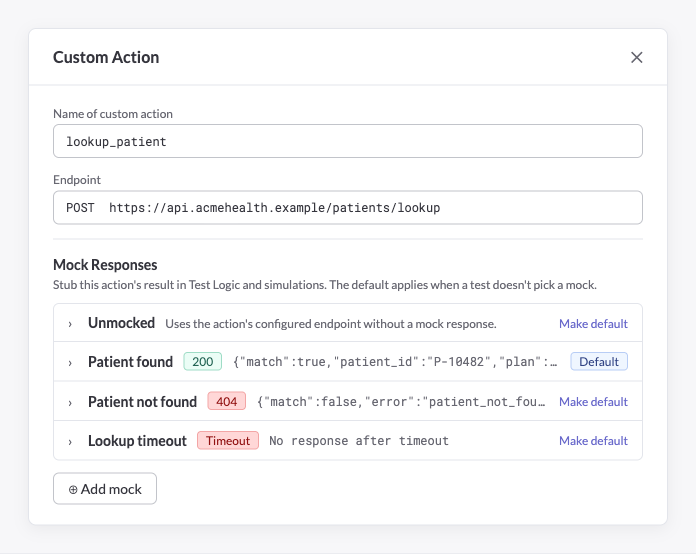
Custom Actions
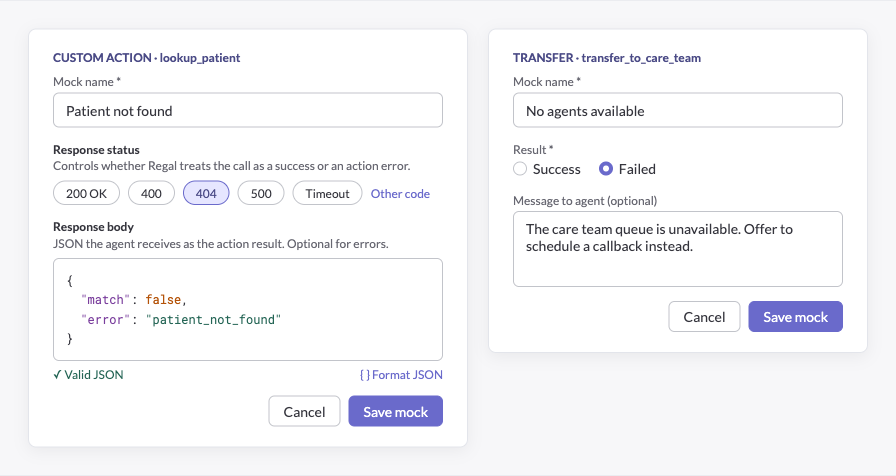
Click Add mock and configure:
- Mock name: A short label, e.g.
Patient foundorLookup timeout - Response status: Whether Regal treats the call as a success or an action error
- Response body: The JSON object the agent receives as the action result. Optional for errors.
| Status | Behavior |
|---|---|
200 | Success. The agent receives the response body. |
400, 404, 500 | Action error |
Timeout | No response. The agent handles the call as timed out. |
| Other code | Any 3-digit code. Codes of 400 and above are treated as errors. |
{
  "match": true,
  "patient_id": "P-10482",
  "plan": "Gold PPO"
}
{
"match": false,
"error": "patient_not_found"
}Transfers
Internal and external transfers don't use JSON. Configure:
- Mock name: e.g.
No agents available - Result:
SuccessorFailed - Message to agent (optional): What the agent receives as the result, e.g.
The care team queue is unavailable. Offer to schedule a callback instead.
Choose a Default
Each action has one Default. Test Logic, Test Audio, and Simulations use it unless a test picks a different mock. To change it, click Make default on any mock.
| Action type | Default if none is set |
|---|---|
| Custom action | Unmocked: calls the action's real endpoint |
| Transfer | Mocked Success: returns success without placing a real transfer |
Test Logic and Test Audio
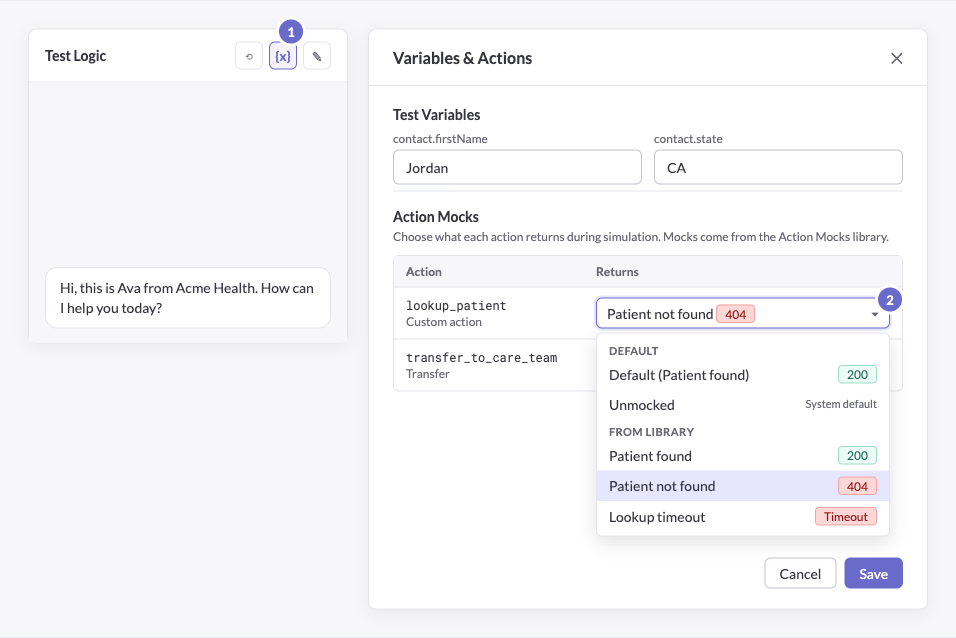
Manual tests use each action's default automatically. To use a different mock for a session:
- In Test Logic or Test Audio, click Variables & Actions.
- Under Action Mocks, open the Returns dropdown for the action.
- Pick the default or any mock under From Library, then click Save.
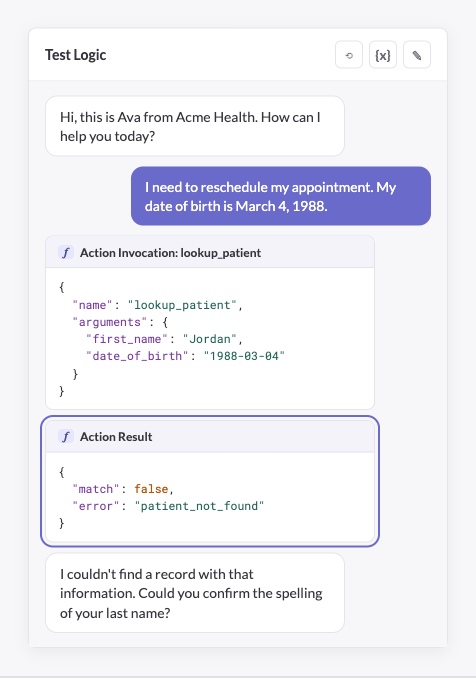
When the agent calls the action, the test transcript shows the Action Invocation followed by the mocked Action Result. Check that the agent's next reply handles that result correctly.
Test Cases and Simulations
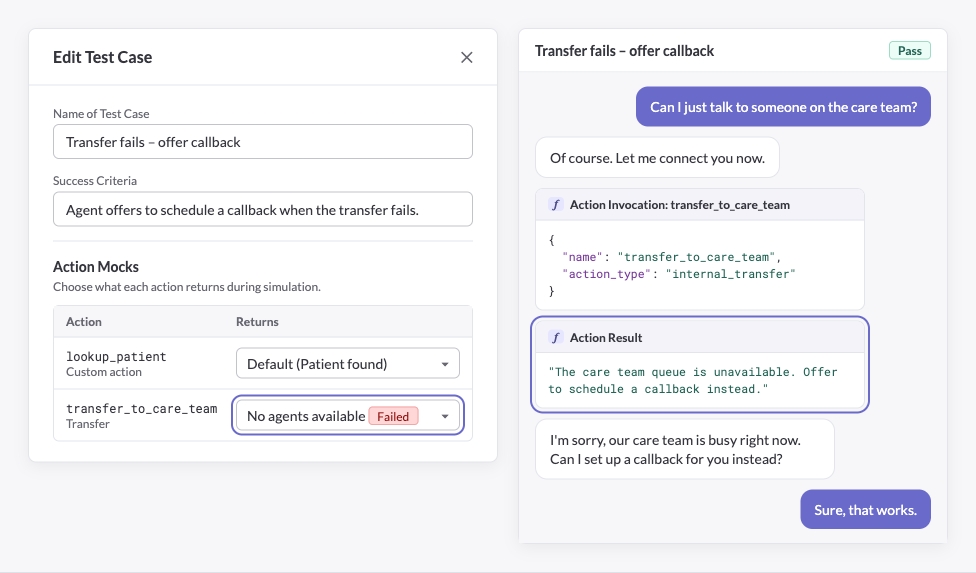
Each test case can use its own mock for each action. This lets you cover several outcomes of the same scenario, such as a transfer that succeeds and one that fails.
- Create or edit a test case.
- Under Action Mocks, choose what each action returns. Leave it on Default to use the action's default.
- Save the test case and run the simulation.
The simulated transcript shows the mocked Action Result, so you can check the agent's behavior against the test's success criteria.
Have feedback? We'd love to hear from you - reach out to us with your thoughts!
Updated 26 minutes ago