

Send SMS
Let your AI voice agent text the contact during a call.
Overview
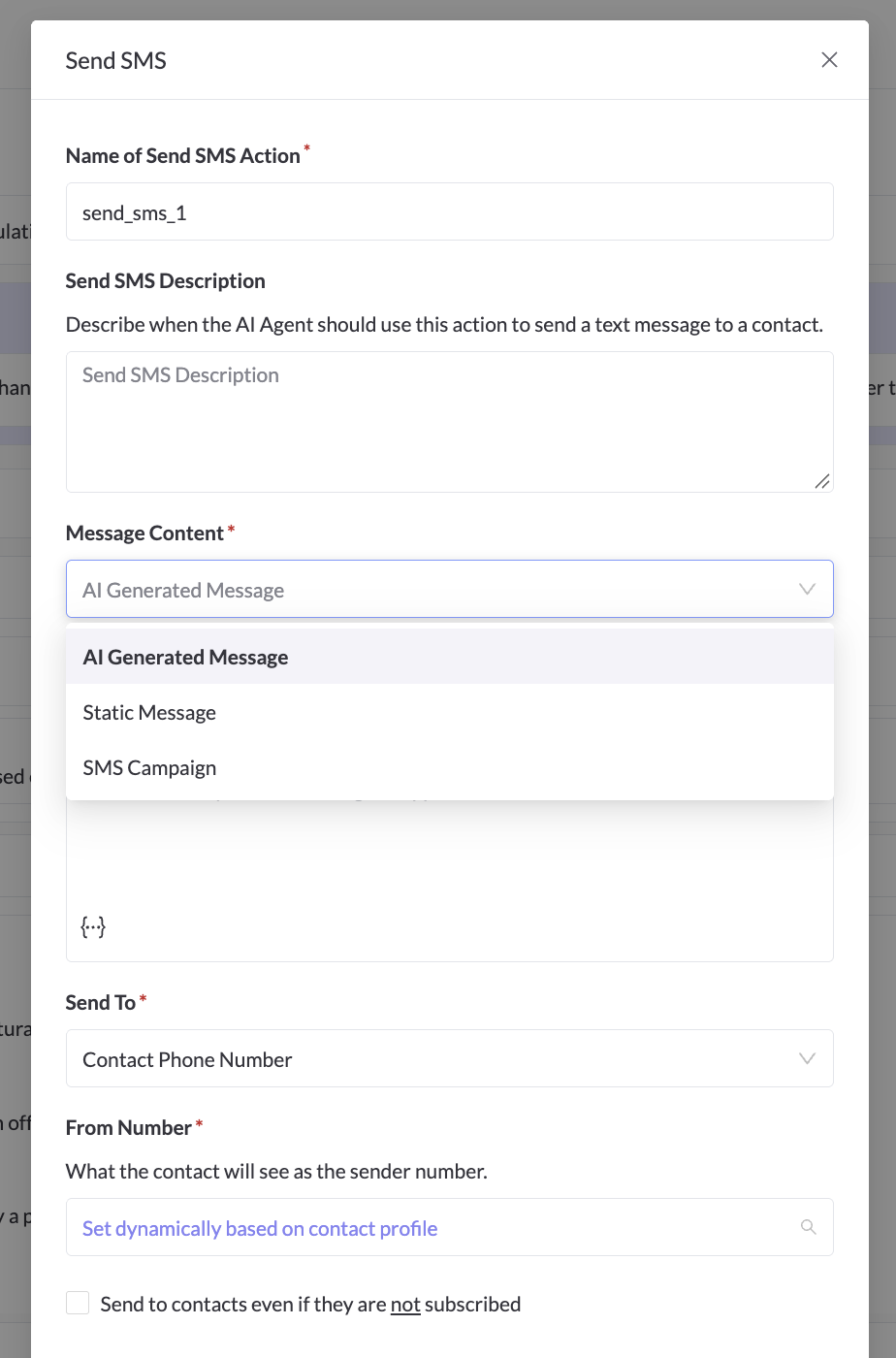
The Send SMS action lets your AI voice agent send a text message to the contact while the call is still happening. Use it to send a booking link, confirm an appointment, or share the next step in writing.
The text is sent through Regal's standard SMS sending, so it appears in the contact's activity timeline like any other outbound message.
You choose how the message is written:
- AI Generated Message: the agent writes the text from a prompt you provide.
- Static Message: a fixed message you write, with variables for personalization.
- SMS Campaign: sends a message from an existing Regal SMS campaign, so approved copy and settings are reused.
Key Use Cases
| Use case | Why it matters |
|---|---|
| Send a booking or payment link | The contact gets it while still on the call. |
| Confirm an appointment | A written record they can refer back to. |
| Share a helpful article | Answers the contact’s question with more detail they can review at their own pace |
| Send a recap of agreed next steps | Keeps the conversation moving forward |
Configure Send SMS
-
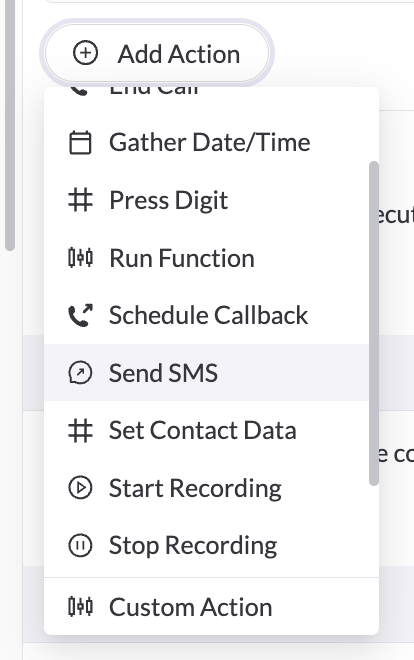
In the Agent Builder, open Actions and select Add action → Send SMS.
-
Name your action and write a description that tells the agent when to use it. For example: "Call this action when the agent confirms the customer's appointment time."
-
Choose Message Content:
- AI Generated Message: write a Message Prompt describing what the text should say. For example: "A friendly text message that confirms the customer's appointment in a user-friendly format like "Monday, April 3, 2027 at 3pm Eastern"
- Static Message: write the Content (up to 1,600 characters). Use
{{variable}}to insert contact attributes or AI variables. - SMS Campaign: select the Campaign. The message, sender, and opt-in settings all come from that campaign. The campaign must be an SMS campaign in the Ready state.
-
Send To: Contact Phone Number (the only option for now).
-
From Number: choose the number the contact will see as the sender, or choose Dynamic to use the contact's default sender. This field isn't shown for SMS campaigns, which use the campaign's sender.
-
Save and publish your agent.
Opt-in and compliance
By default, the text is only sent if the contact is subscribed to SMS. If they aren't, the action fails and no message is sent.
You can check Send to contacts even if they are not subscribed to override this.
Use the opt-in override only for transactional messages about the contact's account, such as a delivery notification.For SMS Campaign messages, the campaign's own opt-in setting applies.
Update Your Agent Prompt
Tell the agent when to send the text, and what to say aloud when it does. For example:
Task Steps
Once the customer agrees to a time, say: “I’ll text you the booking link now.”Call the “sendBookingLink” action.
Use the exact name you gave the action in step 2. You can also reference it by typing / in the prompt editor, as with other actions.
Test Your Setup
- Run a test call that reaches the step where the text should be sent, using a contact that is subscribed to SMS.
- Confirm the text arrives on that phone from the number you chose.
- Check the contact's activity timeline for the outbound message.
Troubleshooting & FAQ
🚫 The text didn't send and the call log says the contact isn't opted in to SMS
The contact isn't subscribed to SMS. Subscribe them, or use the opt-in override for transactional messages only.
🚫 The action fails when I use an SMS campaign
The campaign must be an SMS campaign in the Ready state. Campaigns created for agent tasks can't be used with this action.
✅ A variable shows up as empty in the text
Insert variables with the variable picker, and make sure the contact has a value for that attribute.
❌ Can I send images (MMS)?
Not currently.
❌ Can I text a number other than the contact's?
Not currently. Messages go to the contact's phone number only.
Updated about 16 hours ago